

Templates
Templates define the structure and AI behavior for PRD generation. They control what questions the AI asks, what sections the PRD includes, and how the document is formatted.Template Marketplace
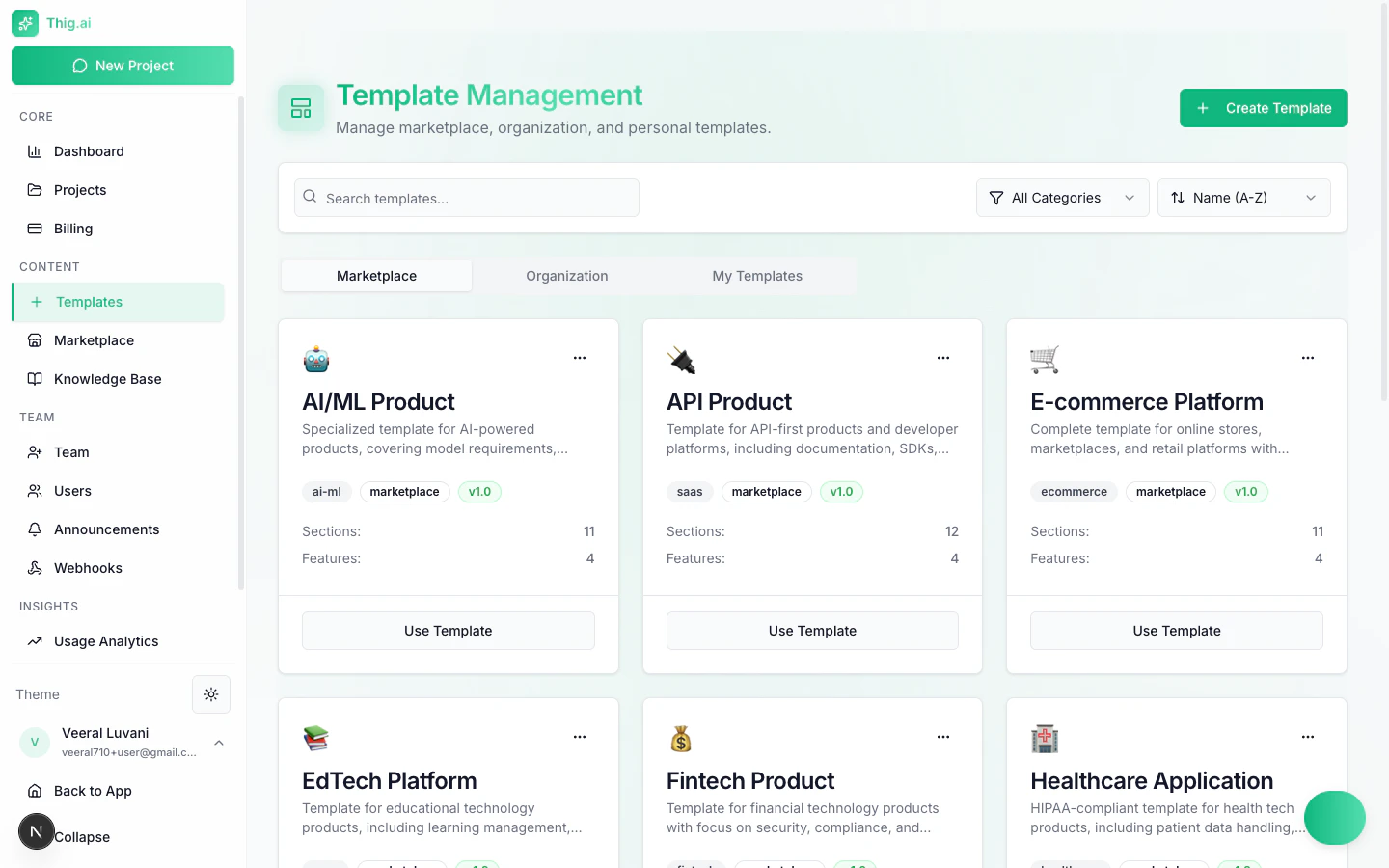
Browse and manage templates from the Templates page
/admin/templates (Marketplace tab):
Categories
- SaaS — Web application PRDs
- Mobile — iOS/Android app specifications
- eCommerce — Online store features
- FinTech — Financial products
- Healthcare — Health and wellness applications
- AI/ML — AI-powered products
- Enterprise — Large-scale business software
- Consumer — Consumer-facing apps
- DevTools — Developer tools
- Marketplace — Platform/marketplace products
Template Cards
Each card shows:- Name and description
- Category badge
- Star rating (average + count)
- Pricing tier (FREE, PRO, BUSINESS, ENTERPRISE)
Using a Marketplace Template
- Click a template card
- Review the preview (structure, sections, sample questions)
- Rate it (1–5 stars) if you’d like
- Enter a project name
- Click “Create Project” — starts the AI conversation with this template
Creating Templates
Navigate to/admin/templates and click Create Template (or use the template editor).
Template Fields
AI-Assisted Template Creation
Click Generate with AI and describe your template idea in natural language. The AI fills in the system prompt, initial question, sections, and sample questions automatically.Template Versioning
Every save creates a new template version. You can:- View past versions with timestamps and notes
- Compare versions with a diff viewer
- Restore any previous version
Template Types
Submitting to the Marketplace
Want to share your template with the community?- Create an organization or personal template
- Click Submit to Marketplace
- Fill in the submission form
- Your template enters an approval queue
- Once approved, it appears in the public marketplace
Managing Templates
From the Templates page:- Search by name or description
- Filter by category
- Sort by name or creation date
- Edit your own templates
- Duplicate any template to create a copy
- Delete your own templates
System and marketplace templates can only be edited or deleted by platform administrators.