

Integrations
Connect third-party services to export your PRDs directly to the tools your team already uses. Manage integrations at Settings > Integrations.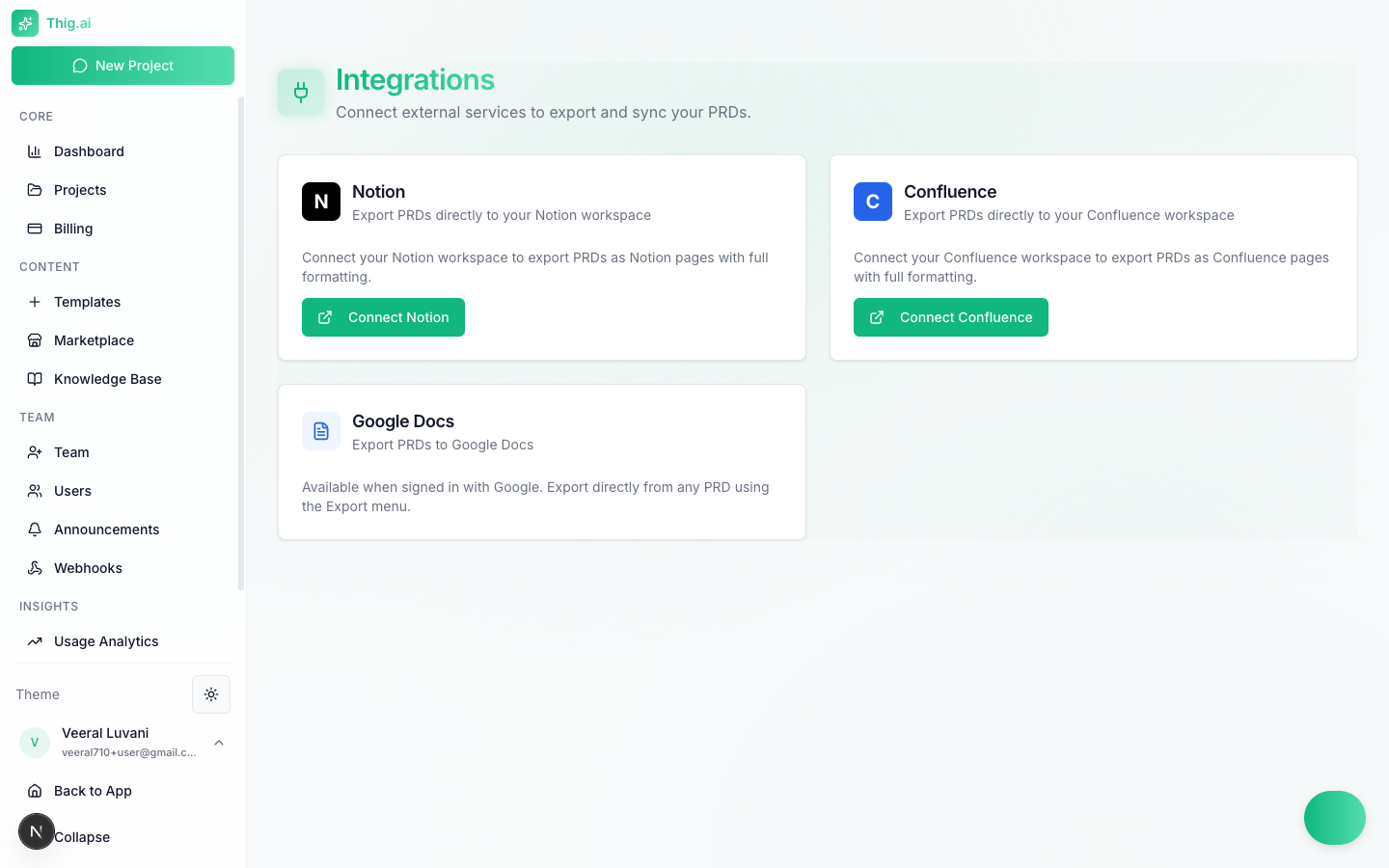
Connect Notion, Confluence, and Google Docs for seamless exports
Notion
Export PRDs as fully formatted Notion pages — headings, tables, code blocks, and lists are all preserved.Setup
- Go to Settings > Integrations
- Click Connect Notion
- You’ll be redirected to Notion’s authorization page
- Select the workspace you want to connect
- Click Allow access
- You’ll be redirected back to thig.ai with a success message
Required Permissions
When authorizing, Notion grants thig.ai permission to:- Create pages in your workspace
- Read basic workspace info (workspace name and ID)
Exporting to Notion
- Open any PRD in the review page
- Click Export in the toolbar
- Select Notion
- Optionally choose a parent page to nest your PRD under
- Click Export — a new Notion page is created with your full PRD
Disconnecting
- Go to Settings > Integrations
- Click Disconnect on the Notion card
- You can reconnect at any time
Disconnecting removes the OAuth token from thig.ai but does not delete pages already exported to Notion.
Confluence
Export PRDs as Confluence pages with full formatting. Supports automatic space selection and parent page nesting.Setup
- Go to Settings > Integrations
- Click Connect Confluence
- You’ll be redirected to Atlassian’s authorization page
- Select the Atlassian site to connect (if you have multiple)
- Click Accept
- You’ll be redirected back to thig.ai with a success message
Required Permissions
The Confluence integration requests these OAuth scopes:Exporting to Confluence
- Open any PRD in the review page
- Click Export in the toolbar
- Select Confluence
- Optionally choose a space and parent page
- Click Export — a new Confluence page is created
Token Refresh
Confluence OAuth tokens expire periodically. thig.ai automatically refreshes the token using the offline access grant — you should not need to reconnect. If a refresh fails, you’ll be prompted to reconnect.Disconnecting
- Go to Settings > Integrations
- Click Disconnect on the Confluence card
- Both the access token and refresh token are removed
Google Docs
Export PRDs as Google Docs with headings, tables, and formatting preserved.Setup
Google Docs integration requires no additional setup — it uses the same Google OAuth credentials from your Google sign-in.Google Docs export is only available if you signed in to thig.ai with your Google account. If you registered with email/password, this option is not available.
Exporting to Google Docs
- Open any PRD in the review page
- Click Export in the toolbar
- Select Google Docs
- A new Google Doc is created in your Google Drive
- The document URL is returned — click to open it
Troubleshooting
Connection Status
The Integrations page shows the current status for each service:- Connected — Green badge with workspace/site name and connection date
- Not connected — Connect button available
Data & Privacy
- OAuth tokens are stored encrypted in the database
- thig.ai only creates new content in connected services — it does not read or modify your existing pages
- Disconnecting immediately removes stored tokens
- Exported pages belong to your account in the target service