

AI Profile & Preferences
The AI Profile Settings page (/admin/settings/profile) lets you personalize how the AI generates PRDs. The more context you provide, the more tailored and relevant your documents will be.
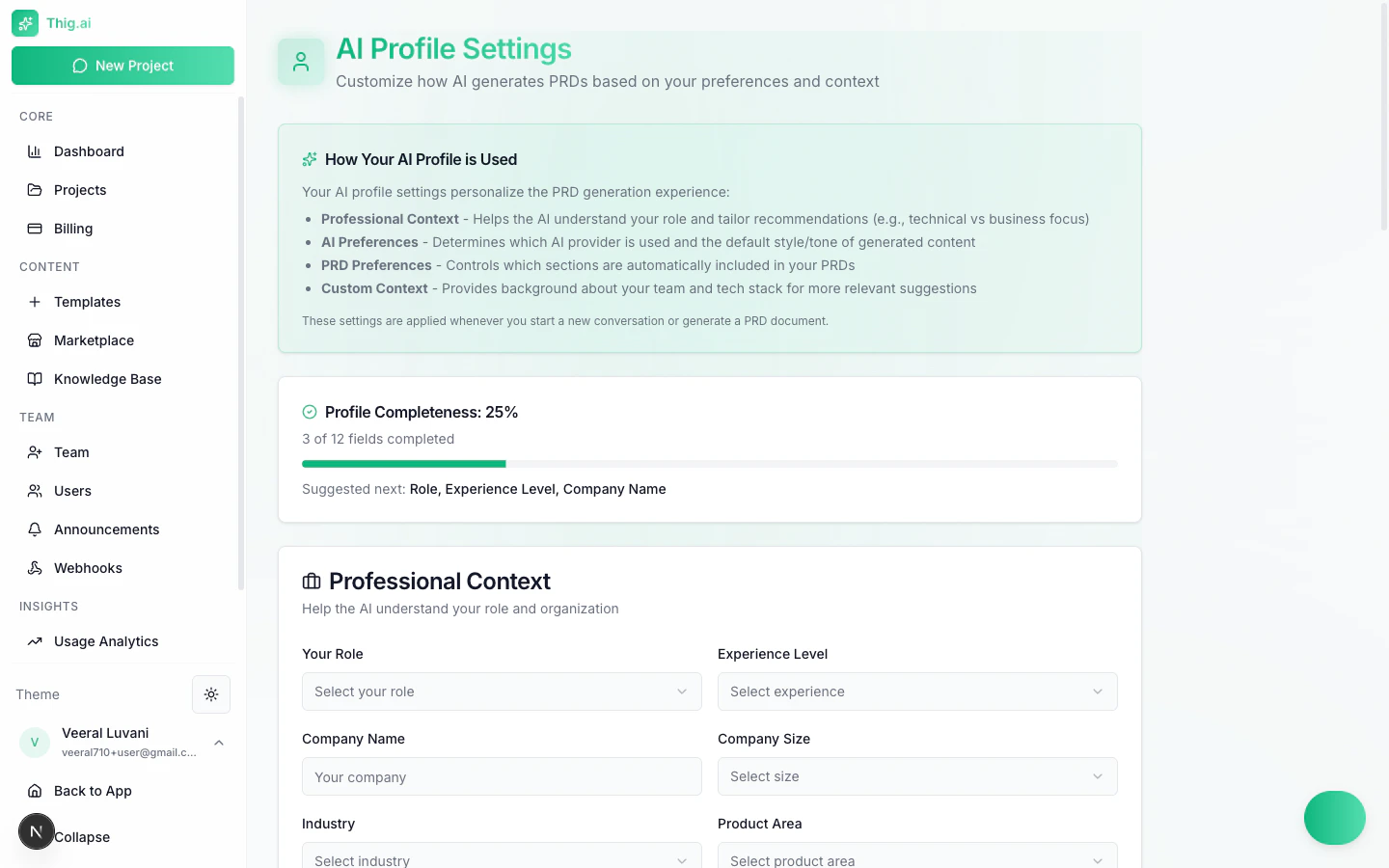
AI Profile Settings with completeness indicator and professional context
How Your AI Profile Is Used
An info box at the top of the page explains the four areas your profile influences:- Question selection — The AI asks more relevant follow-up questions based on your role and industry
- Document structure — PRD sections and depth adapt to your experience level and preferences
- Technical depth — Detail level adjusts based on your tech stack and audience
- Tone and style — Writing style matches your preferred tone and formality
Profile Completeness
A progress indicator shows how much of your profile is filled in (e.g., “25% — 3 of 12 fields completed”). Completing more fields produces better AI output.Professional Context
AI Preferences
PRD Preferences
Toggle which sections the AI includes by default in generated PRDs:- User Stories
- Technical Specifications
- Timeline and Milestones
- Risks and Mitigations
- Success Metrics
Custom Context
Three free-text fields give the AI deeper understanding of your environment:- General Context — Personal preferences, recurring instructions, or constraints the AI should always consider
- Team Context — Team structure, processes, methodology (Agile, Scrum, etc.), and collaboration norms
- Tech Stack Context — Languages, frameworks, infrastructure, and tools your team uses
Custom context is included in every AI conversation you start. Keep it concise and up to date for best results.
Input Preferences
Document Upload
- Enable/disable document upload during chat
- Auto-process toggle — Automatically extract content from uploaded files
Voice Input
- Enable/disable voice input in the chat interface
- Auto-transcribe toggle — Automatically convert speech to text
- Preferred language — Language for transcription