Feature Access Control
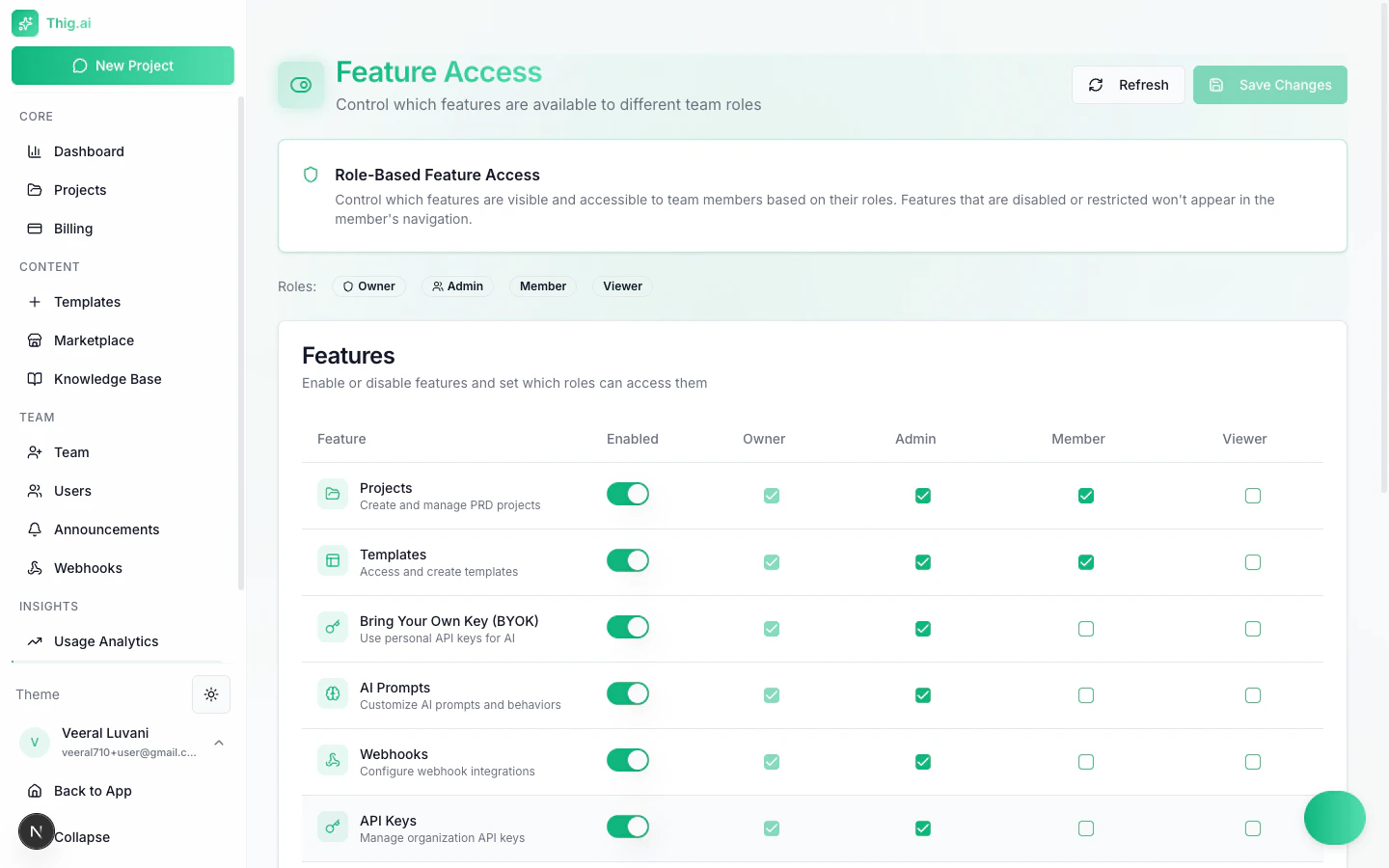
The Feature Access page (/admin/features) lets owners and admins control which platform features are available to each organization role. Features that are disabled or restricted will not appear in the affected member’s navigation.
How It Works
Each feature has two levels of control:
- Enabled toggle — Turn the feature on or off for the entire organization
- Role checkboxes — When enabled, select which roles can access it (Owner, Admin, Member, Viewer)
After making changes, click Save Changes to apply. Use the Refresh button to reload the current configuration.
Available Features
The following 13 features can be configured:
| Feature | Description |
|---|
| Projects | Create and manage PRD projects |
| Templates | Access and create PRD templates |
| Bring Your Own Key (BYOK) | Use personal API keys for AI providers |
| AI Prompts | Customize AI prompts and behaviors |
| Webhooks | Configure webhook integrations for external systems |
| API Keys | Manage the organization’s shared API key pool |
| Analytics | View usage analytics and cost tracking |
| Export | Export PRDs to PDF, DOCX, HTML, and other formats |
| Custom Domain | Configure a branded custom domain |
| Announcements | View team announcements and notifications |
| Document Upload | Upload documents to provide additional context to AI |
| Voice Input | Use voice recording to dictate project requirements |
| Audio Transcription | Transcribe audio files for use as AI context |
Role-Based Access Matrix
By default, features are configured with sensible role assignments:
| Feature | Owner | Admin | Member | Viewer |
|---|
| Projects | Yes | Yes | Yes | — |
| Templates | Yes | Yes | Yes | — |
| BYOK | Yes | Yes | Yes | — |
| AI Prompts | Yes | Yes | — | — |
| Webhooks | Yes | Yes | — | — |
| API Keys | Yes | Yes | — | — |
| Analytics | Yes | Yes | — | — |
| Export | Yes | Yes | Yes | — |
| Custom Domain | Yes | Yes | — | — |
| Announcements | Yes | Yes | Yes | Yes |
| Document Upload | Yes | Yes | Yes | — |
| Voice Input | Yes | Yes | Yes | — |
| Audio Transcription | Yes | Yes | Yes | — |
These are default settings. You can customize them to match your organization’s needs. For example, you may want to grant Members access to Analytics or restrict Export to Admins only.
Common Configurations
Restrictive Setup
Limit Members to core PRD creation only:
- Enable: Projects, Templates, Export, Announcements
- Disable for Members: BYOK, AI Prompts, Webhooks, API Keys, Analytics, Custom Domain
Open Setup
Give Members access to most features:
- Enable all features for Members except API Keys and Custom Domain
- Keep Viewer role read-only with only Announcements enabled
When onboarding new team members, start with a restrictive setup and grant additional access as needed. This prevents accidental changes to shared configurations.
Disabling a feature hides it from navigation but does not delete any existing data. Re-enabling the feature restores full access to previously created resources.
Who Can Manage Feature Access
Only Owners and Admins can access the Feature Access page. Changes take effect immediately for all organization members.