

Team Management
Organize your team with roles, manage members, and configure organization-wide settings.Organization Roles
Managing Members
Team Page (/admin/team)
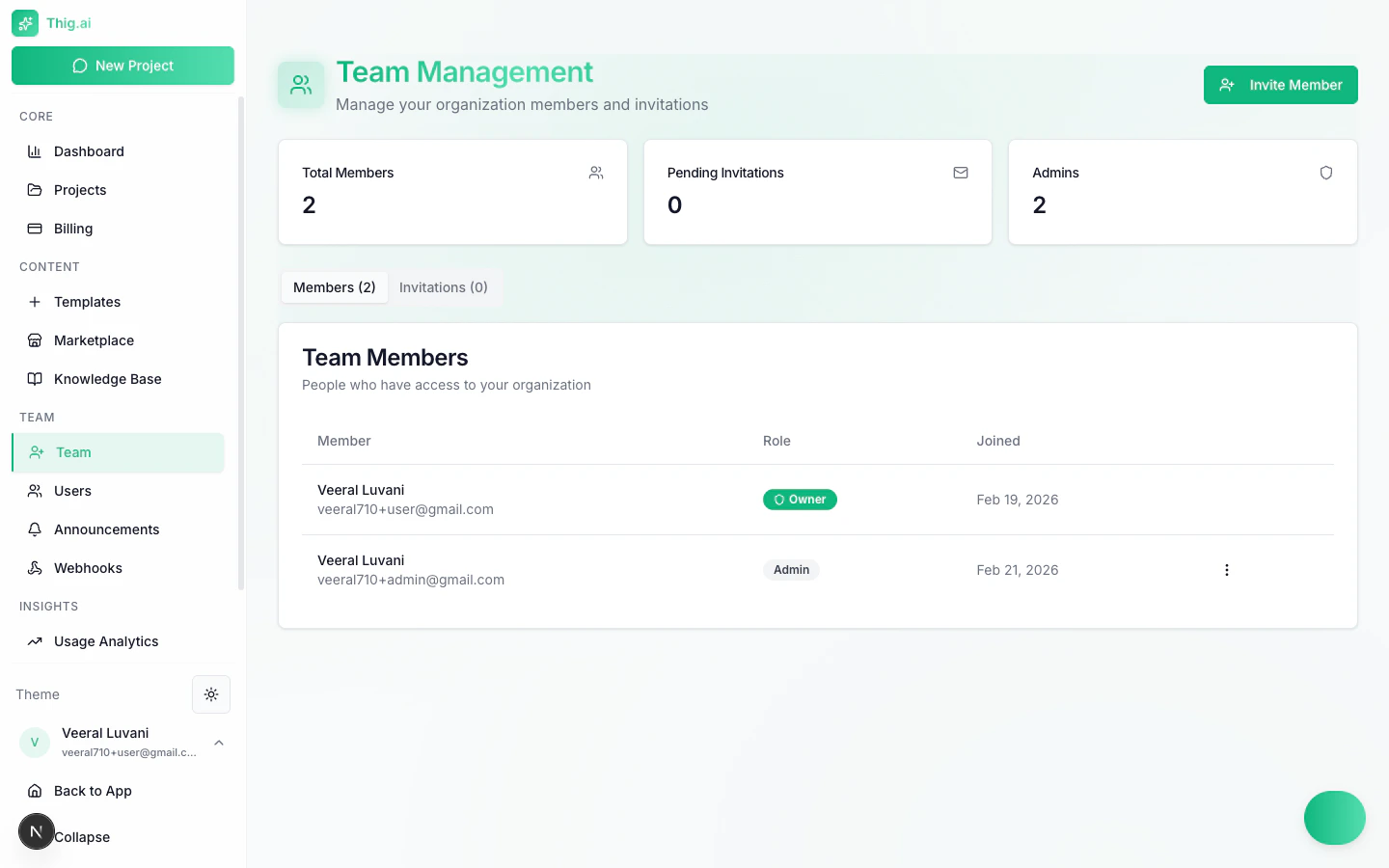
Team management with member roles and actions
- Member name and email
- Role badge (Owner/Admin/Member/Viewer)
- Join date
- Action menu
Changing Roles
- Click the action menu on a member
- Select Change Role
- Choose Admin, Member, or Viewer
Removing Members
- Click the action menu on a member
- Select Remove
- Confirm in the dialog
Inviting Members
- Go to the Invitations tab on the Team page
- Enter the invitee’s email
- Select their role (Admin, Member, or Viewer)
- Click Send Invitation
You can resend or revoke pending invitations at any time.
Users Page (/admin/users)
For admins who need to manage users directly:
- Search users by name or email
- View project count per user
- Add users directly (bypasses invitation flow)
- Edit user roles
- Remove users
Feature Access Control
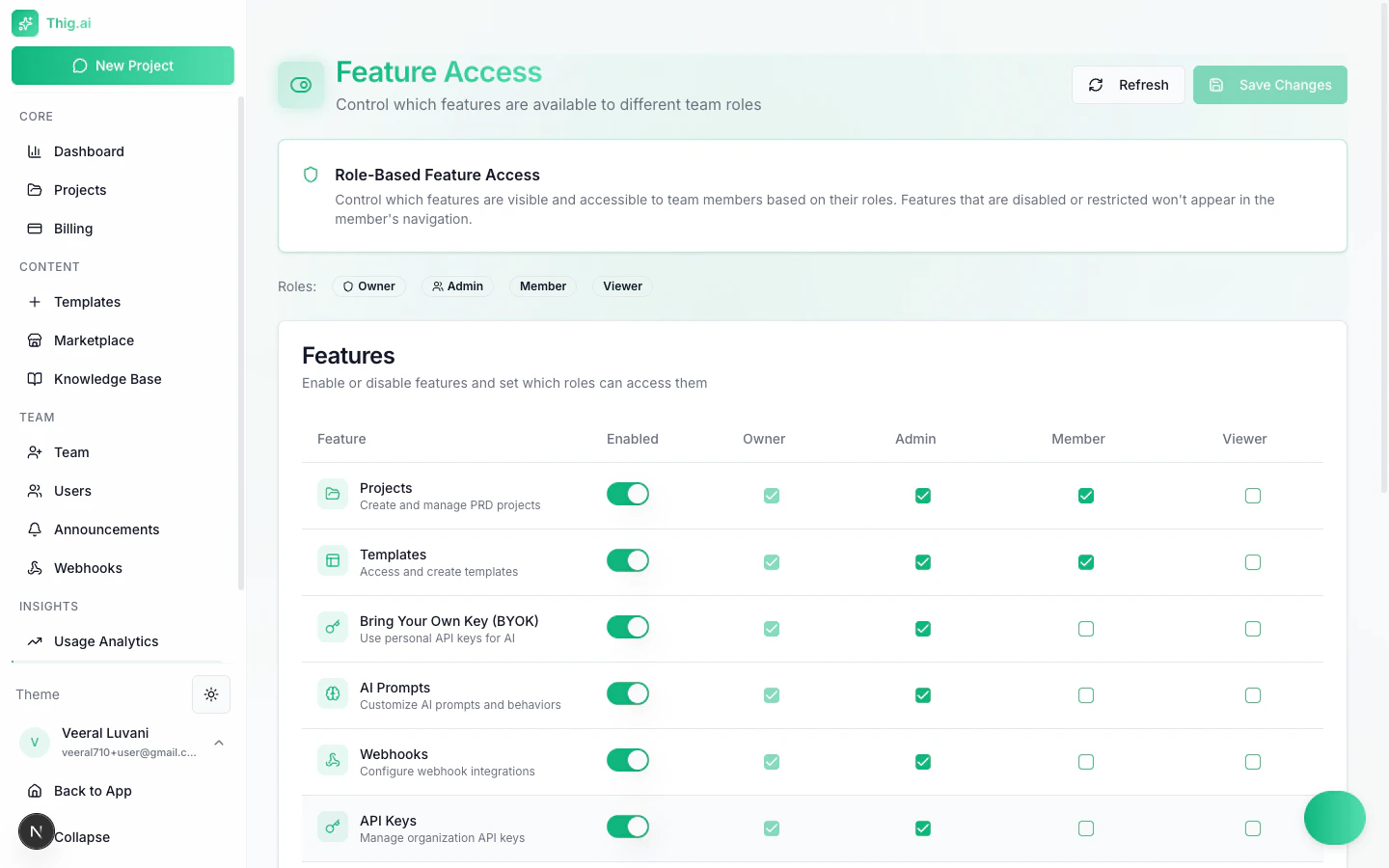
Role-based feature access control matrix
/admin/features):
- Toggle features on/off entirely
- Set per-role access (Owner, Admin, Member, Viewer)
- Available features include: Projects, Templates, BYOK, Webhooks, Analytics, Export formats, Custom Domain, and more
Announcements
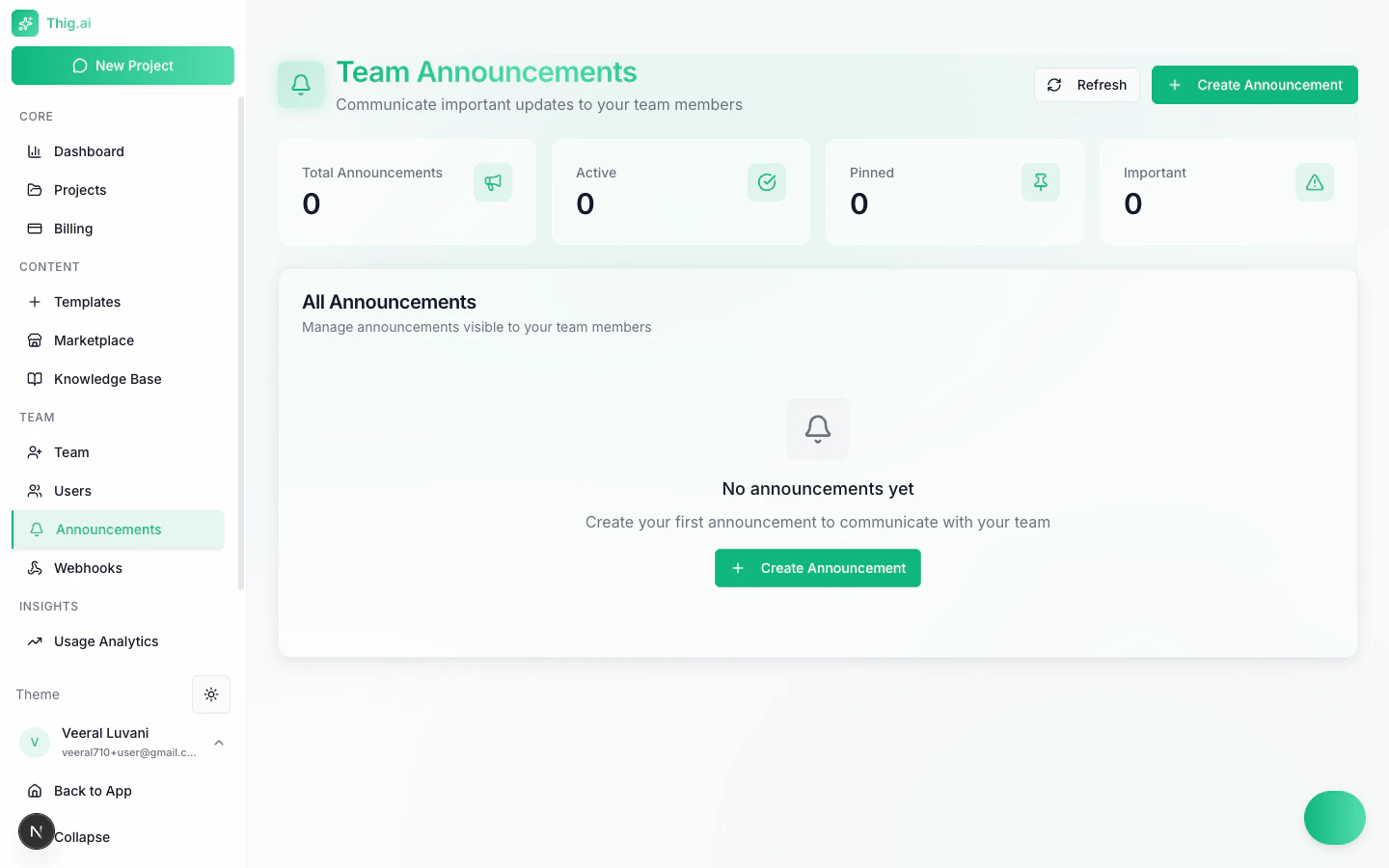
Team announcements dashboard with stats and management
/admin/notifications):
Creating Announcements
- Types: Info, Warning, Success, Error, Announcement
- Fields: Title, message, type, pinned toggle, expiration date
- Pinned announcements always show at the top of the dashboard