

Settings
thig.ai provides extensive configuration options for both individual users and organization administrators.AI Settings (/admin/settings/profile)
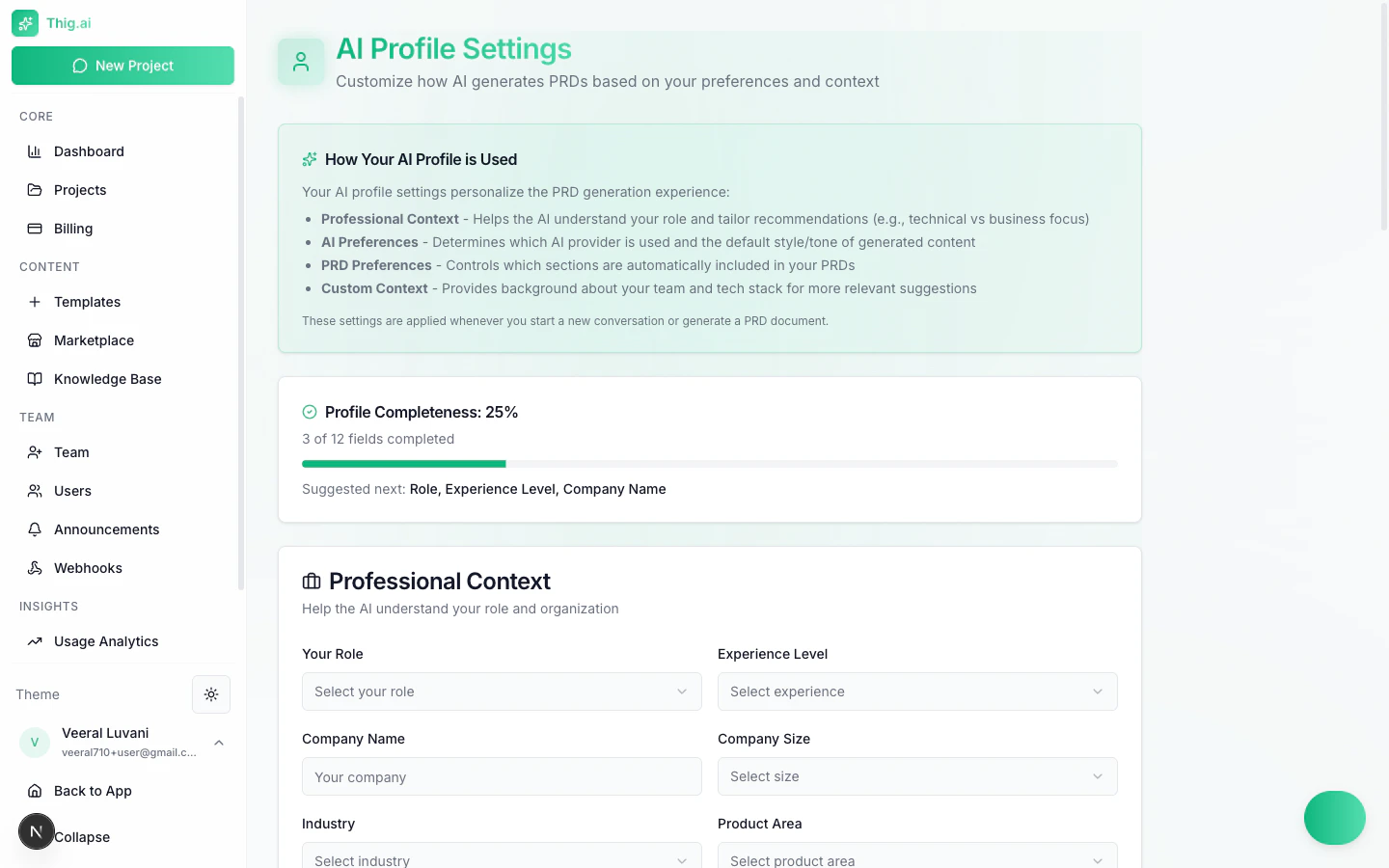
AI Profile Settings with professional context and preferences
Professional Profile
Configure your professional context so the AI can tailor PRDs to your role:- Role — PM, Senior PM, Developer, Founder, etc.
- Experience Level — Junior, Mid, Senior, Principal, C-Level
- Company — Name, size, industry, product area
AI Preferences
Custom Context
Free-text fields that the AI uses to personalize output:- Personal context — Your preferences and instructions
- Team context — Team structure, culture, processes
- Tech stack — Standard technologies your team uses
Timezone
Set your timezone from a searchable dropdown. All dates across the platform display in your selected timezone. Auto-detected for Google OAuth users.My AI Keys — BYOK (/admin/settings/api-keys)
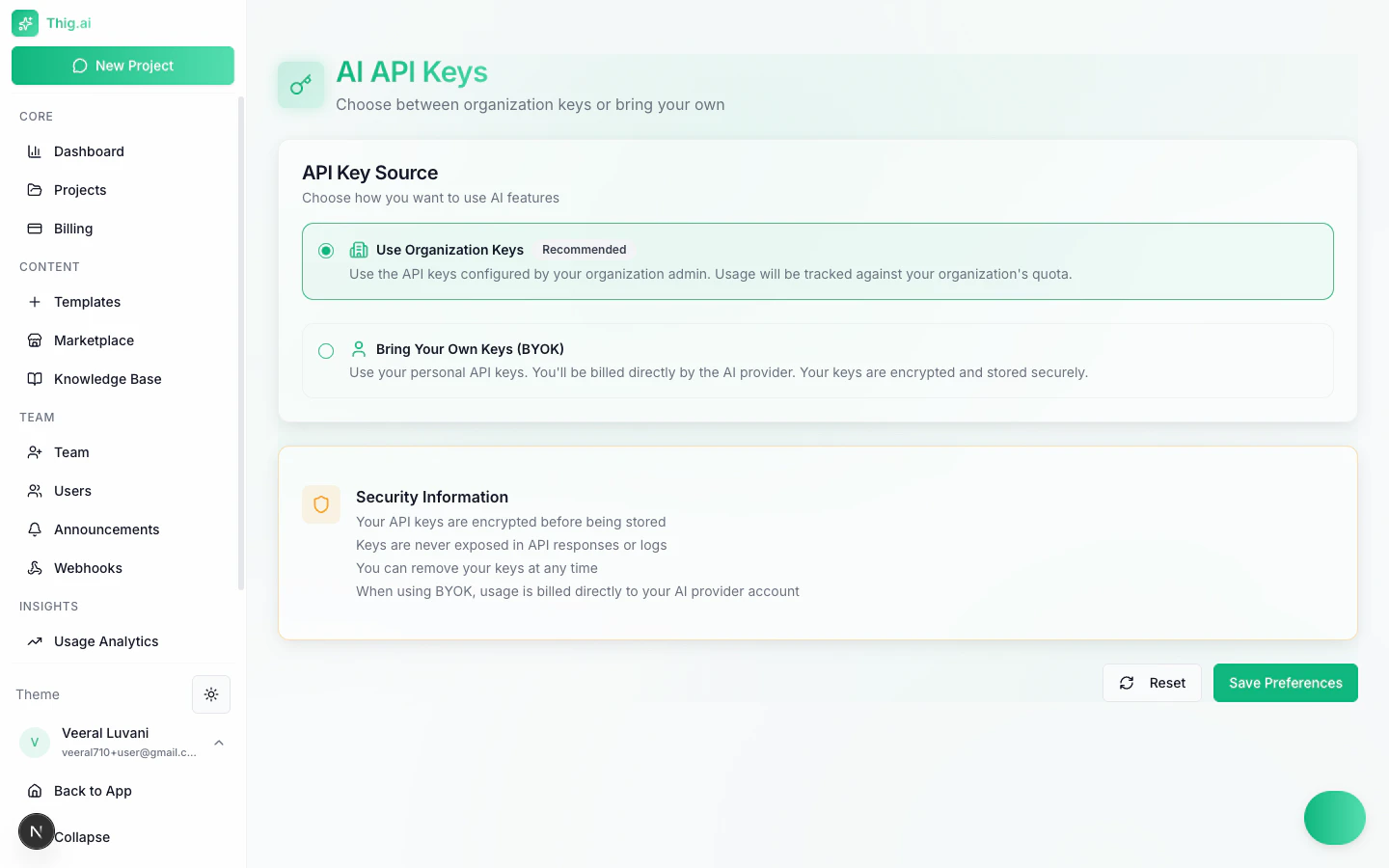
Choose between organization keys or bring your own (BYOK)
Supported Providers
- OpenAI — GPT-4, GPT-4o
- Anthropic — Claude models
- Google Gemini — Standard API key or Vertex AI (with project ID and location)
How It Works
- Choose “Personal keys” instead of “Use org keys”
- Enter your API key for one or more providers
- Keys are encrypted with AES-256-GCM before storage
- Your AI requests now use your own key
sk-...xxxx) — you can update or remove them at any time.
Organization API Keys (/admin/api-keys)
Admin/Owner only
Manage the organization’s shared AI API key pool:
- Add keys for OpenAI, Anthropic, or Gemini
- Set a default key per provider
- Activate/deactivate keys
- View usage and last-used timestamps
Branding (/admin/settings/branding)
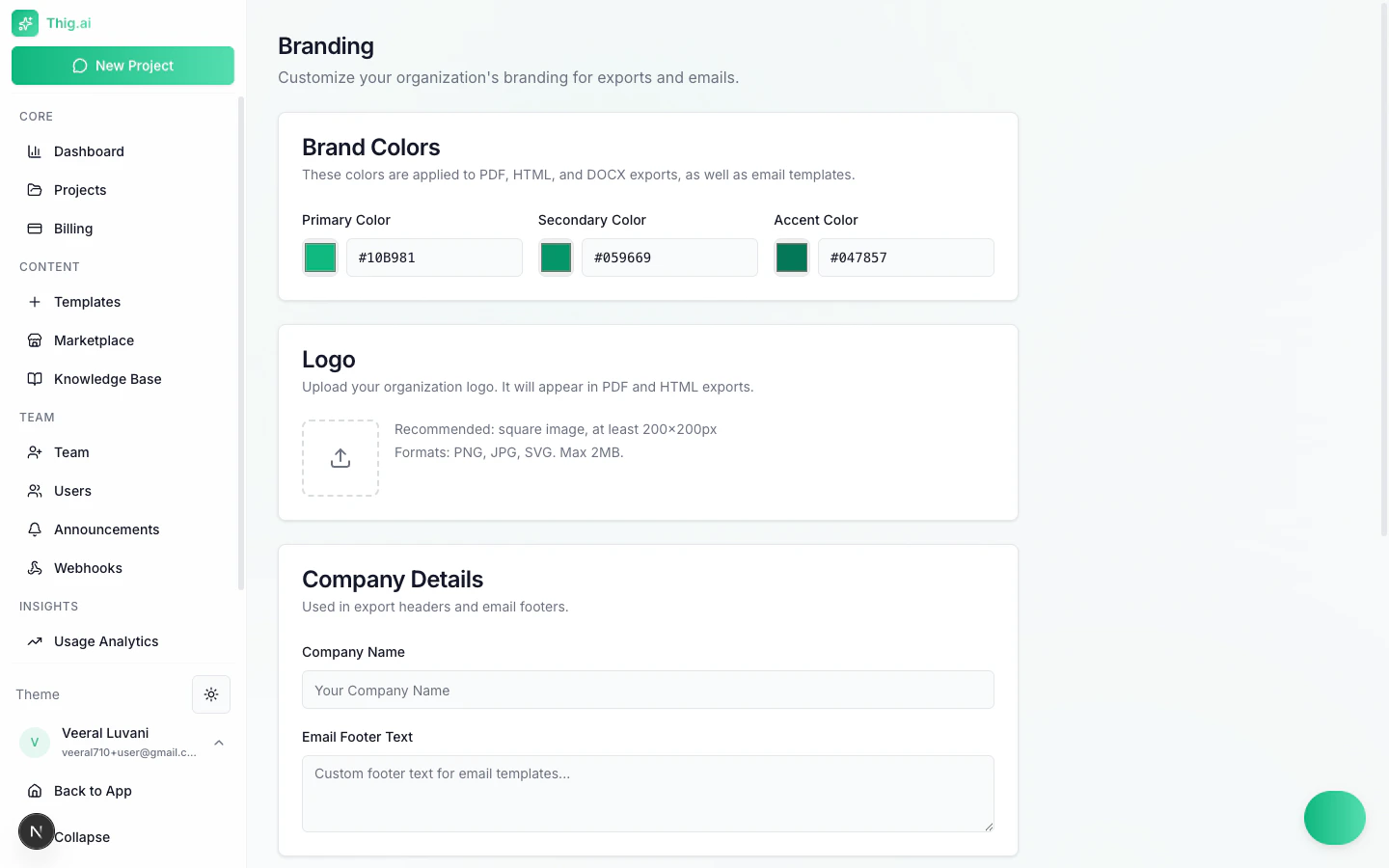
Customize your organization's branding colors and logo
- Primary color — Default: #10B981 (emerald green)
- Secondary color — Default: #059669
- Accent color — Default: #047857
- Company name
- Email footer text
- Logo — Upload an image (max 2MB, drag-and-drop)
Custom Domain (/admin/settings/domain)
Business/Enterprise plans only
Serve thig.ai from your own domain (e.g., prd.yourcompany.com):
- Enter your custom domain
- Add the CNAME and TXT DNS records shown
- Wait for DNS propagation
- Click Verify Domain
- SSL is provisioned automatically
Integrations (/admin/settings/integrations)
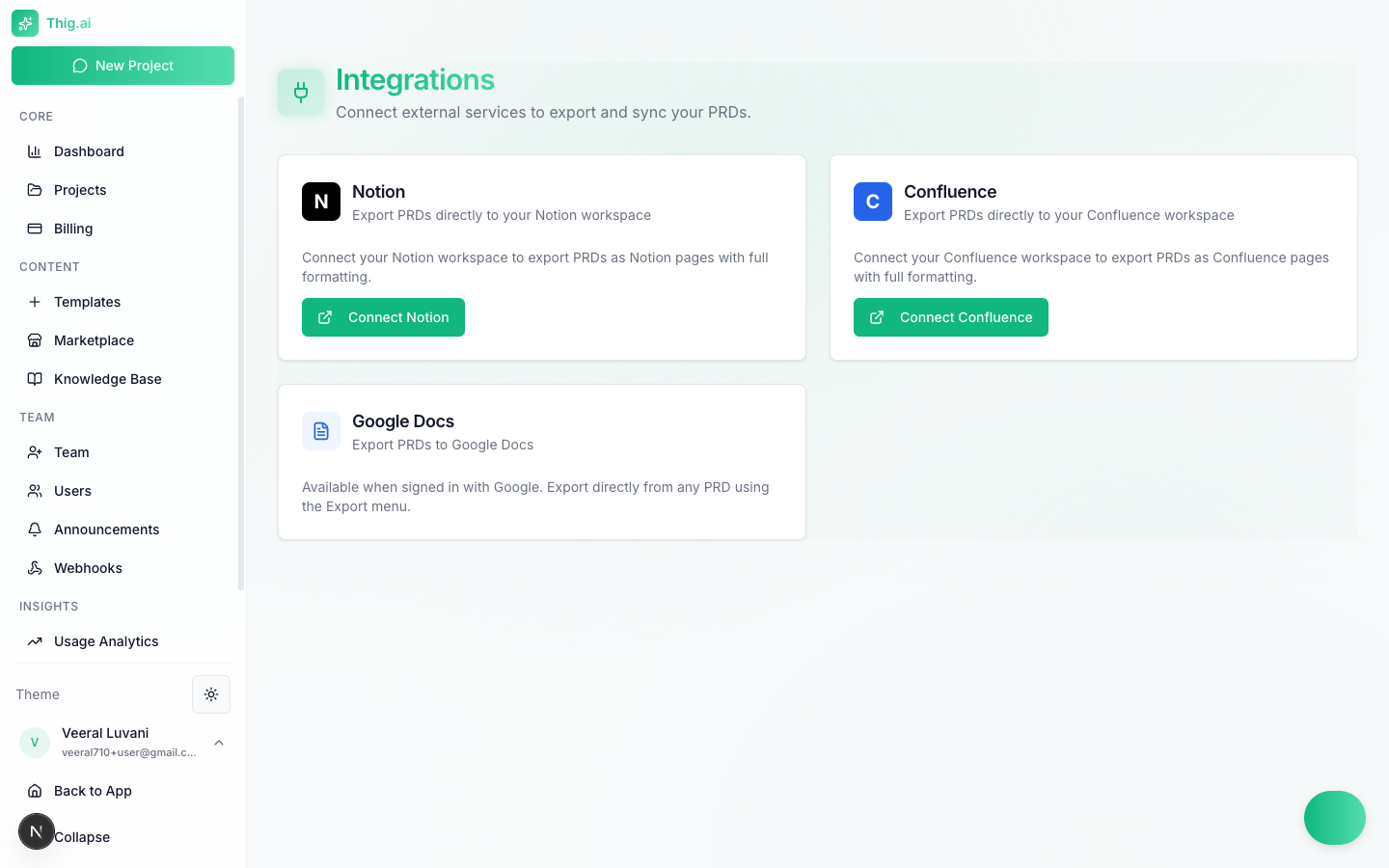
Connect Notion, Confluence, and Google Docs for seamless exports
Notion
- Click Connect Notion → OAuth authorization
- Enables export to Notion pages
- Shows connected workspace name
Google Docs
- Uses your Google sign-in credentials
- Enables export to Google Docs
- No additional setup needed if signed in with Google
Confluence
- Click Connect Confluence → OAuth authorization
- Enables export to Confluence pages
Security Settings (/admin/settings/security)
All users
Manage account security:
- Two-Factor Authentication — Enable/disable TOTP-based MFA with QR code setup and backup codes
- Active Sessions — View and revoke sessions across devices (browser, OS, IP, last active)
- IP Allowlist — (Enterprise) Restrict access to specific IP addresses or CIDR ranges
AI Configuration (/admin/settings/ai-config)
Admin/Owner only
Configure AI model behavior for your organization:
- Default provider and tier — Choose which provider and quality level to use
- Task-level overrides — Set specific model tiers for different tasks (chat, PRD generation, etc.)
- Allowed models — Restrict which models team members can select
Scheduled Exports (/admin/settings/scheduled-exports)
Pro+ plans
Set up automatic recurring exports of your PRDs:
- Weekly, on-status-change, cron-based, or one-time schedules
- Email or webhook delivery
- Multiple formats (PDF, HTML, DOCX, Markdown)
- Run history and delivery log
Approval Workflows (/admin/settings/approvals)
Enterprise plans
Configure multi-approver workflows for critical actions:
- PRD publish, export, project delete, template publish
- Configurable required approval count
- Select specific approvers from your team
AI Memories (/admin/settings/memories)
Browse and manage what the AI has learned from your conversations:
- View extracted memories (preferences, decisions, context)
- Filter by type: preference, decision, context, feedback
- Edit or delete individual memories
- Memory conflict detection and resolution
Developer Tools (/admin/settings/developer)
Admin/Owner only
Create and manage REST API keys for programmatic access. See the Developer Tools guide for full details.
Organization Settings (/admin/settings)
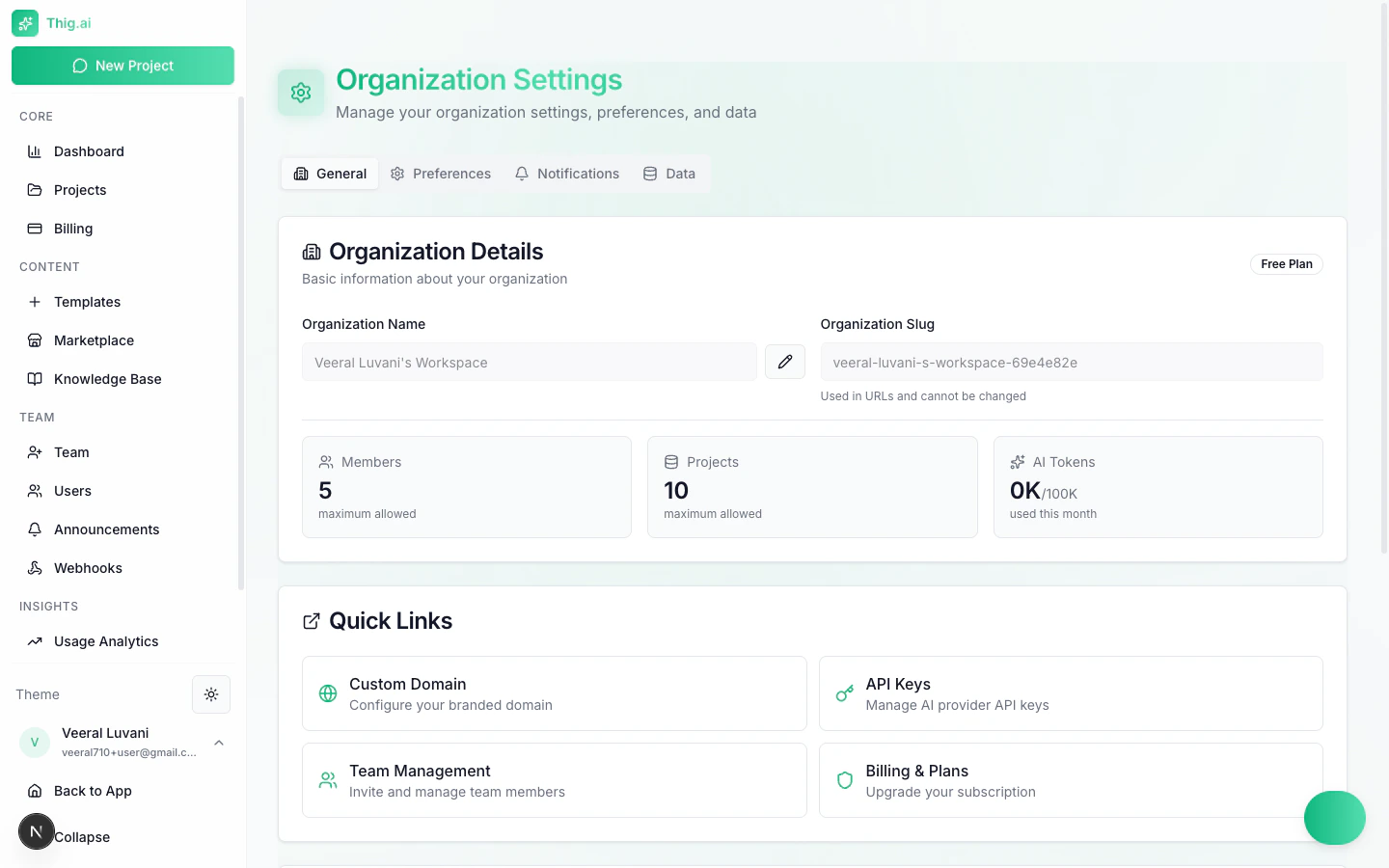
Organization settings with plan details and resource limits
General
- Organization name and slug
- View current plan limits (members, projects, tokens)
- Default AI provider
Notifications
Toggle email notifications:- Project updates
- Team invite alerts
- Weekly digest
- Security alerts
Data Management
- Backup — Download full JSON backup of all organization data
- Import — Restore from a backup file
- Delete All Projects — Requires typing “delete all projects” to confirm
- Delete Organization — Requires typing the org name to confirm