

Collaboration
thig.ai provides multiple ways to collaborate on PRD documents — from real-time presence to threaded comments and external sharing.Sharing Projects
Share via Link
- Open a project in the review page
- Click the Share button
- Copy the shareable link
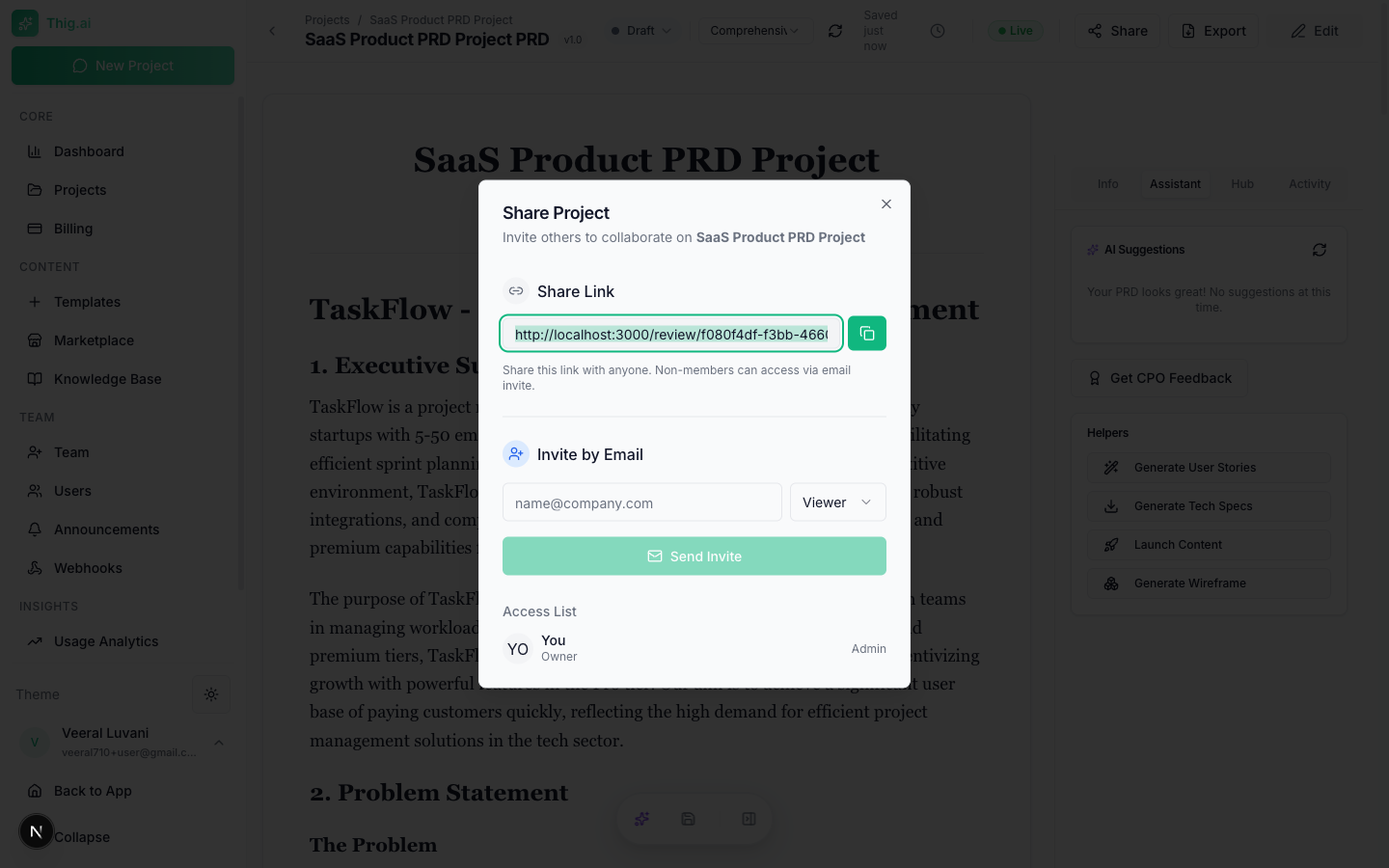
Share Settings
Configure per-share:Adding Collaborators
Add specific people by email with a role:- Viewer — Can view the PRD
- Commenter — Can view and leave comments
Comments
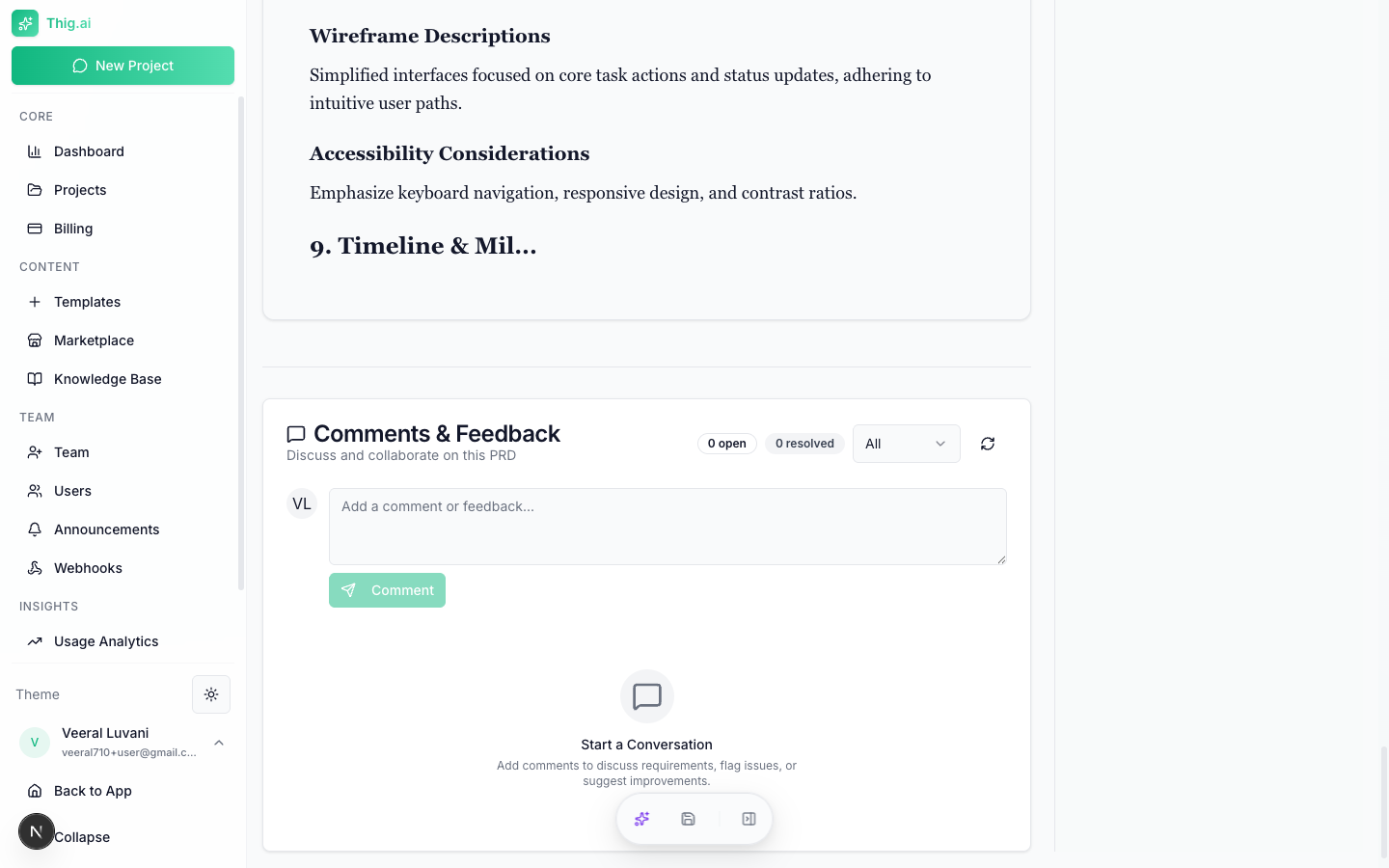
Adding Comments
- Open the Comments tab in the right sidebar
- Type your comment in the input area
- Click Send
Threaded Replies
Reply to any comment to create a threaded discussion. Threads are collapsible for easy reading.Comment Status
Comments can be:- Open — Active discussion
- Resolved — Issue addressed
- Won’t Fix — Acknowledged but not changing
Filtering
Filter comments by:- All — Show everything
- Open — Only unresolved comments
- Resolved — Only resolved comments
Section Anchoring
Comments can be anchored to specific sections or selected text in the PRD, making it easy to reference what’s being discussed.Real-time Presence
When multiple people have the same document open:- Presence avatars — See who’s currently viewing in the top bar
- Live cursors — See where others are in the document
- Save notifications — Get a toast when someone else saves changes, with a “Reload” button to see updates
Team Invitations
Invite new members to your organization:- Go to Team (
/admin/team) - Click Invite Member
- Enter their email and select a role (Admin, Member, or Viewer)
- They receive an email with a link to join
Invitation Flow
- Invitee receives email with a link to
/invite/{token} - They see who invited them, the organization name, and their assigned role
- If not logged in, they’re prompted to sign in or create an account
- They click “Accept Invitation” to join the organization
- Redirected to the dashboard
Managing Invitations
From the Team page (Invitations tab):- View pending, accepted, and expired invitations
- Resend invitation emails
- Revoke pending invitations