> ## Documentation Index
> Fetch the complete documentation index at: https://docs.thig.ai/llms.txt
> Use this file to discover all available pages before exploring further.
# Templates
> Create, customize, and browse PRD templates
# Templates
Templates define the structure and AI behavior for PRD generation. They control what questions the AI asks, what sections the PRD includes, and how the document is formatted.
## Template Marketplace
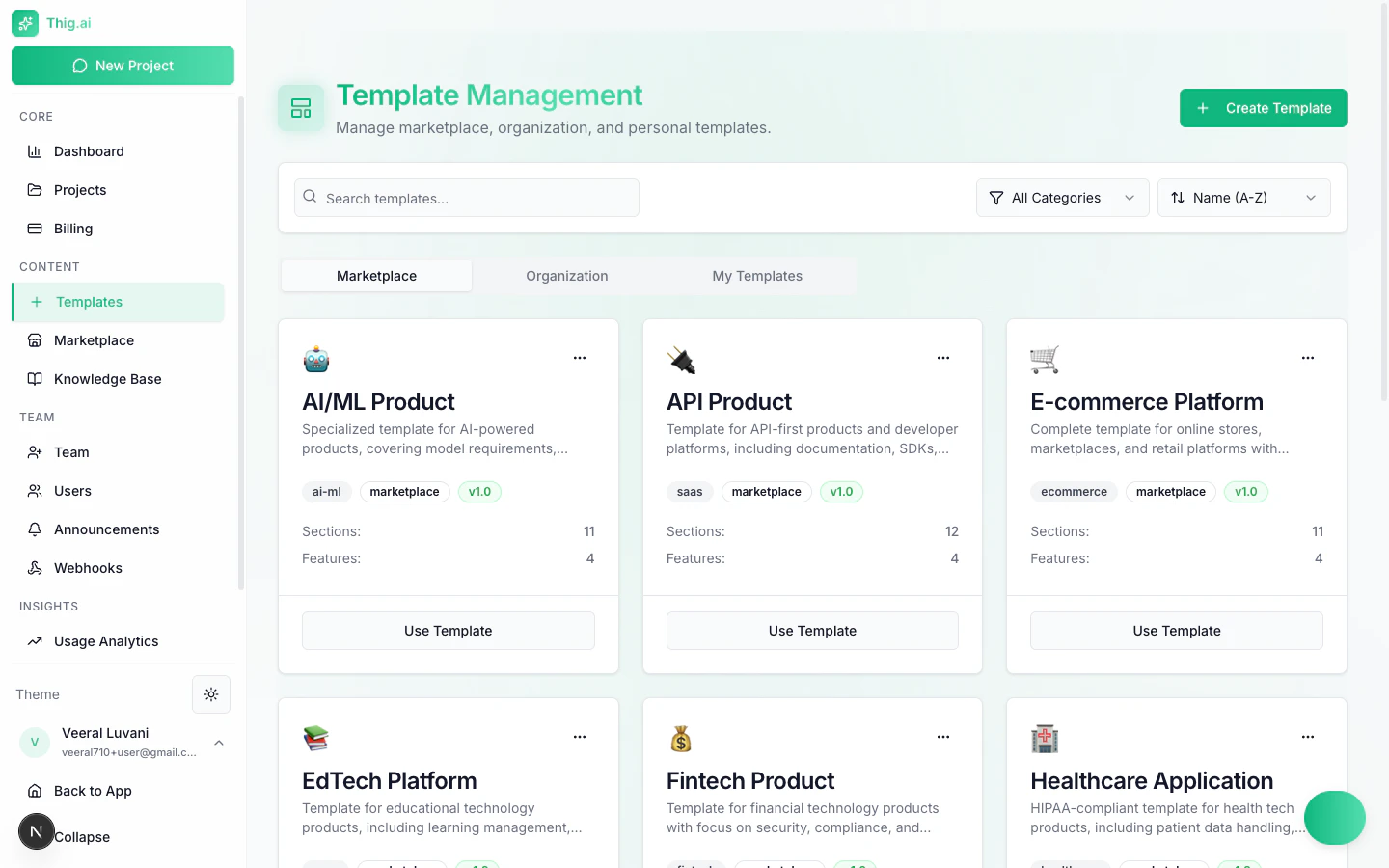 Browse curated templates at `/admin/templates` (Marketplace tab):
### Categories
* **SaaS** — Web application PRDs
* **Mobile** — iOS/Android app specifications
* **eCommerce** — Online store features
* **FinTech** — Financial products
* **Healthcare** — Health and wellness applications
* **AI/ML** — AI-powered products
* **Enterprise** — Large-scale business software
* **Consumer** — Consumer-facing apps
* **DevTools** — Developer tools
* **Marketplace** — Platform/marketplace products
### Template Cards
Each card shows:
* Name and description
* Category badge
* Star rating (average + count)
* Pricing tier (FREE, PRO, BUSINESS, ENTERPRISE)
Click a card to preview the full template with sections, sample questions, and key features.
### Using a Marketplace Template
1. Click a template card
2. Review the preview (structure, sections, sample questions)
3. Rate it (1–5 stars) if you'd like
4. Enter a project name
5. Click "Create Project" — starts the AI conversation with this template
## Creating Templates
Navigate to `/admin/templates` and click **Create Template** (or use the template editor).
### Template Fields
| Field | Description |
| ---------------------- | -------------------------------------------------------- |
| **Name** | Template name |
| **Description** | What this template is for |
| **Category** | SaaS, Mobile, eCommerce, etc. |
| **Emoji** | Icon displayed on the template card |
| **Visibility** | Personal (only you), Organization (your team), or Public |
| **System Prompt** | AI instructions that guide the conversation |
| **Initial Question** | The first question AI asks when a project starts |
| **Sections** | PRD sections this template generates |
| **Sample Questions** | Example follow-up questions shown in preview |
| **Quick Start Hints** | Tips for users starting with this template |
| **Key Features** | Feature highlights shown on the card |
| **Preferred Provider** | Default AI provider (OpenAI, Anthropic, Gemini) |
| **Preferred Model** | Specific model to use |
### AI-Assisted Template Creation
Click **Generate with AI** and describe your template idea in natural language. The AI fills in the system prompt, initial question, sections, and sample questions automatically.
### Template Versioning
Every save creates a new template version. You can:
* View past versions with timestamps and notes
* Compare versions with a diff viewer
* Restore any previous version
## Template Types
| Type | Who Creates | Visibility |
| ---------------- | ----------------------- | ---------------- |
| **Personal** | Any user | Only the creator |
| **Organization** | Admins/owners | All org members |
| **System** | SuperAdmins | Platform-wide |
| **Marketplace** | Community + SuperAdmins | Public |
## Submitting to the Marketplace
Want to share your template with the community?
1. Create an organization or personal template
2. Click **Submit to Marketplace**
3. Fill in the submission form
4. Your template enters an approval queue
5. Once approved, it appears in the public marketplace
## Managing Templates
From the Templates page:
* **Search** by name or description
* **Filter** by category
* **Sort** by name or creation date
* **Edit** your own templates
* **Duplicate** any template to create a copy
* **Delete** your own templates
System and marketplace templates can only be edited or deleted by platform administrators.
Browse curated templates at `/admin/templates` (Marketplace tab):
### Categories
* **SaaS** — Web application PRDs
* **Mobile** — iOS/Android app specifications
* **eCommerce** — Online store features
* **FinTech** — Financial products
* **Healthcare** — Health and wellness applications
* **AI/ML** — AI-powered products
* **Enterprise** — Large-scale business software
* **Consumer** — Consumer-facing apps
* **DevTools** — Developer tools
* **Marketplace** — Platform/marketplace products
### Template Cards
Each card shows:
* Name and description
* Category badge
* Star rating (average + count)
* Pricing tier (FREE, PRO, BUSINESS, ENTERPRISE)
Click a card to preview the full template with sections, sample questions, and key features.
### Using a Marketplace Template
1. Click a template card
2. Review the preview (structure, sections, sample questions)
3. Rate it (1–5 stars) if you'd like
4. Enter a project name
5. Click "Create Project" — starts the AI conversation with this template
## Creating Templates
Navigate to `/admin/templates` and click **Create Template** (or use the template editor).
### Template Fields
| Field | Description |
| ---------------------- | -------------------------------------------------------- |
| **Name** | Template name |
| **Description** | What this template is for |
| **Category** | SaaS, Mobile, eCommerce, etc. |
| **Emoji** | Icon displayed on the template card |
| **Visibility** | Personal (only you), Organization (your team), or Public |
| **System Prompt** | AI instructions that guide the conversation |
| **Initial Question** | The first question AI asks when a project starts |
| **Sections** | PRD sections this template generates |
| **Sample Questions** | Example follow-up questions shown in preview |
| **Quick Start Hints** | Tips for users starting with this template |
| **Key Features** | Feature highlights shown on the card |
| **Preferred Provider** | Default AI provider (OpenAI, Anthropic, Gemini) |
| **Preferred Model** | Specific model to use |
### AI-Assisted Template Creation
Click **Generate with AI** and describe your template idea in natural language. The AI fills in the system prompt, initial question, sections, and sample questions automatically.
### Template Versioning
Every save creates a new template version. You can:
* View past versions with timestamps and notes
* Compare versions with a diff viewer
* Restore any previous version
## Template Types
| Type | Who Creates | Visibility |
| ---------------- | ----------------------- | ---------------- |
| **Personal** | Any user | Only the creator |
| **Organization** | Admins/owners | All org members |
| **System** | SuperAdmins | Platform-wide |
| **Marketplace** | Community + SuperAdmins | Public |
## Submitting to the Marketplace
Want to share your template with the community?
1. Create an organization or personal template
2. Click **Submit to Marketplace**
3. Fill in the submission form
4. Your template enters an approval queue
5. Once approved, it appears in the public marketplace
## Managing Templates
From the Templates page:
* **Search** by name or description
* **Filter** by category
* **Sort** by name or creation date
* **Edit** your own templates
* **Duplicate** any template to create a copy
* **Delete** your own templates
System and marketplace templates can only be edited or deleted by platform administrators.