> ## Documentation Index
> Fetch the complete documentation index at: https://docs.thig.ai/llms.txt
> Use this file to discover all available pages before exploring further.
# Settings
> Configure your profile, AI preferences, branding, integrations, and organization settings
# Settings
thig.ai provides extensive configuration options for both individual users and organization administrators.
## AI Settings (`/admin/settings/profile`)
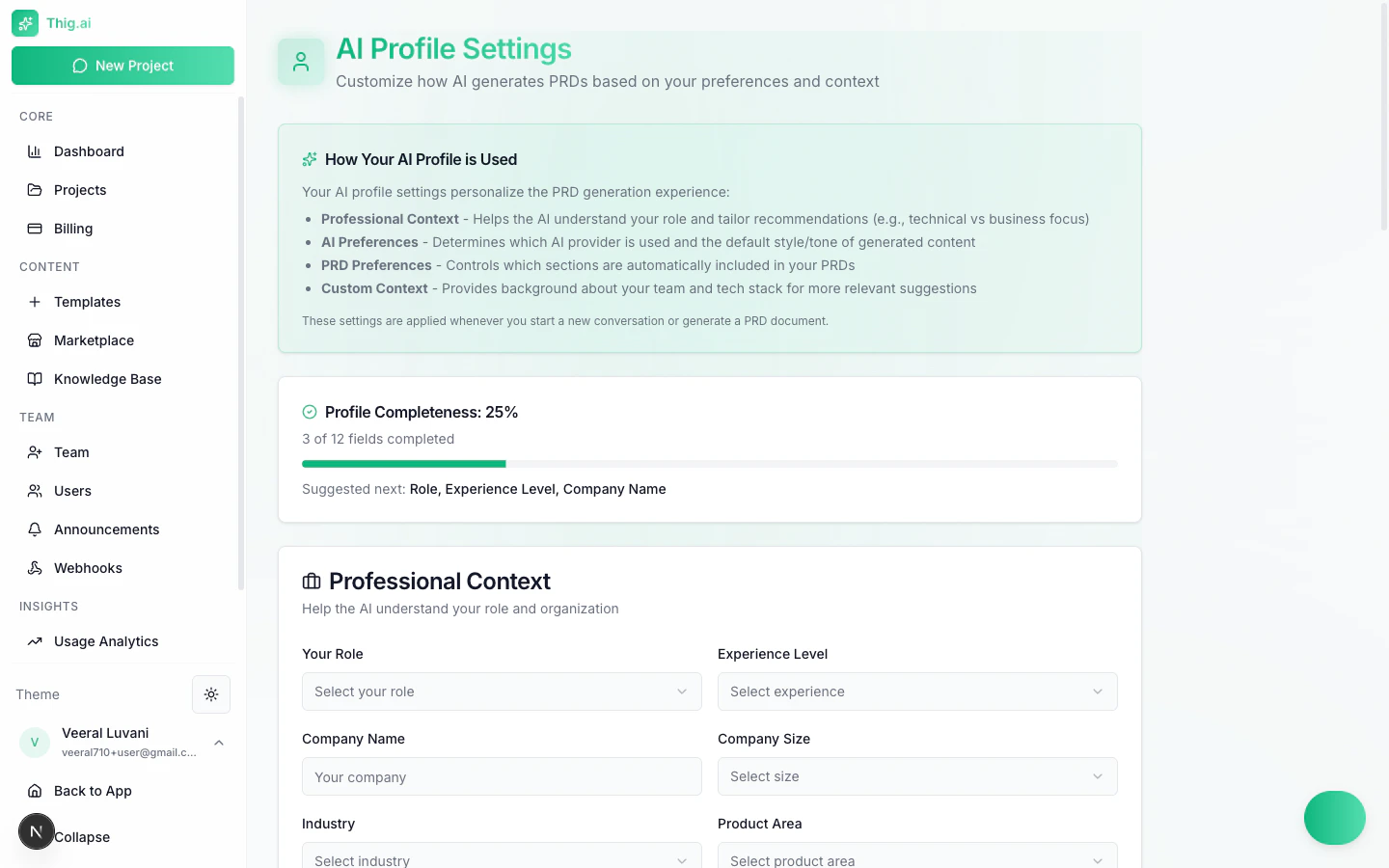 ### Professional Profile
Configure your professional context so the AI can tailor PRDs to your role:
* **Role** — PM, Senior PM, Developer, Founder, etc.
* **Experience Level** — Junior, Mid, Senior, Principal, C-Level
* **Company** — Name, size, industry, product area
### AI Preferences
| Setting | Options |
| ---------------------- | ------------------------------------------ |
| **Preferred Provider** | OpenAI, Anthropic, Gemini |
| **Preferred Model** | Provider-specific model selection |
| **Document Style** | Formal, Conversational, Technical, Concise |
| **Detail Level** | High-level, Balanced, Detailed |
| **Default Sections** | Choose which PRD sections to include |
### Custom Context
Free-text fields that the AI uses to personalize output:
* **Personal context** — Your preferences and instructions
* **Team context** — Team structure, culture, processes
* **Tech stack** — Standard technologies your team uses
### Timezone
Set your timezone from a searchable dropdown. All dates across the platform display in your selected timezone. Auto-detected for Google OAuth users.
## My AI Keys — BYOK (`/admin/settings/api-keys`)
### Professional Profile
Configure your professional context so the AI can tailor PRDs to your role:
* **Role** — PM, Senior PM, Developer, Founder, etc.
* **Experience Level** — Junior, Mid, Senior, Principal, C-Level
* **Company** — Name, size, industry, product area
### AI Preferences
| Setting | Options |
| ---------------------- | ------------------------------------------ |
| **Preferred Provider** | OpenAI, Anthropic, Gemini |
| **Preferred Model** | Provider-specific model selection |
| **Document Style** | Formal, Conversational, Technical, Concise |
| **Detail Level** | High-level, Balanced, Detailed |
| **Default Sections** | Choose which PRD sections to include |
### Custom Context
Free-text fields that the AI uses to personalize output:
* **Personal context** — Your preferences and instructions
* **Team context** — Team structure, culture, processes
* **Tech stack** — Standard technologies your team uses
### Timezone
Set your timezone from a searchable dropdown. All dates across the platform display in your selected timezone. Auto-detected for Google OAuth users.
## My AI Keys — BYOK (`/admin/settings/api-keys`)
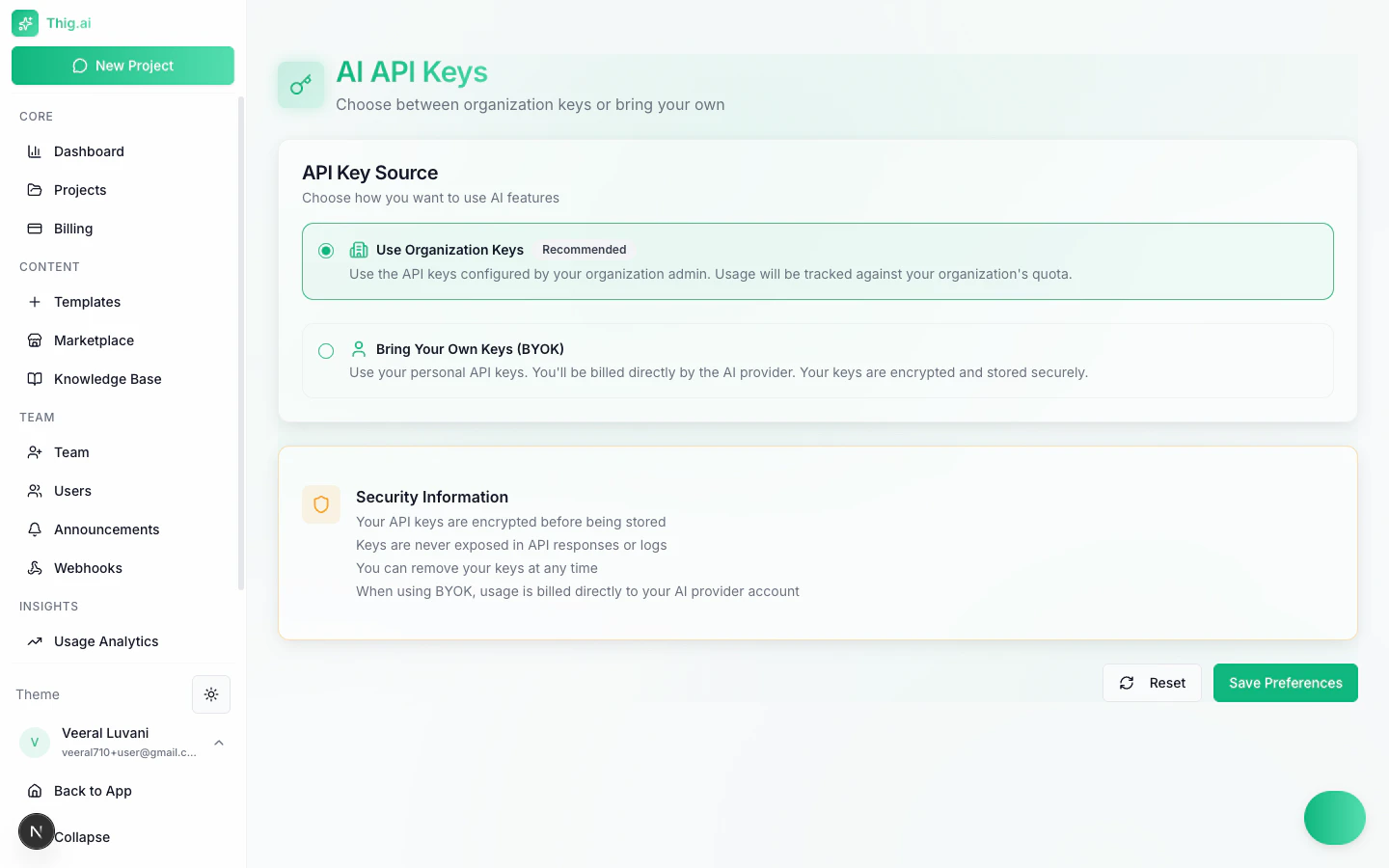 Bring your own API keys to use your own AI accounts instead of the organization's pool.
### Supported Providers
* **OpenAI** — GPT-4, GPT-4o
* **Anthropic** — Claude models
* **Google Gemini** — Standard API key or Vertex AI (with project ID and location)
### How It Works
1. Choose "Personal keys" instead of "Use org keys"
2. Enter your API key for one or more providers
3. Keys are encrypted with AES-256-GCM before storage
4. Your AI requests now use your own key
Keys are displayed masked (e.g., `sk-...xxxx`) — you can update or remove them at any time.
## Organization API Keys (`/admin/api-keys`)
*Admin/Owner only*
Manage the organization's shared AI API key pool:
* Add keys for OpenAI, Anthropic, or Gemini
* Set a default key per provider
* Activate/deactivate keys
* View usage and last-used timestamps
The key resolution order is: User's BYOK → Org default key → Any active org key → Platform key.
## Branding (`/admin/settings/branding`)
Bring your own API keys to use your own AI accounts instead of the organization's pool.
### Supported Providers
* **OpenAI** — GPT-4, GPT-4o
* **Anthropic** — Claude models
* **Google Gemini** — Standard API key or Vertex AI (with project ID and location)
### How It Works
1. Choose "Personal keys" instead of "Use org keys"
2. Enter your API key for one or more providers
3. Keys are encrypted with AES-256-GCM before storage
4. Your AI requests now use your own key
Keys are displayed masked (e.g., `sk-...xxxx`) — you can update or remove them at any time.
## Organization API Keys (`/admin/api-keys`)
*Admin/Owner only*
Manage the organization's shared AI API key pool:
* Add keys for OpenAI, Anthropic, or Gemini
* Set a default key per provider
* Activate/deactivate keys
* View usage and last-used timestamps
The key resolution order is: User's BYOK → Org default key → Any active org key → Platform key.
## Branding (`/admin/settings/branding`)
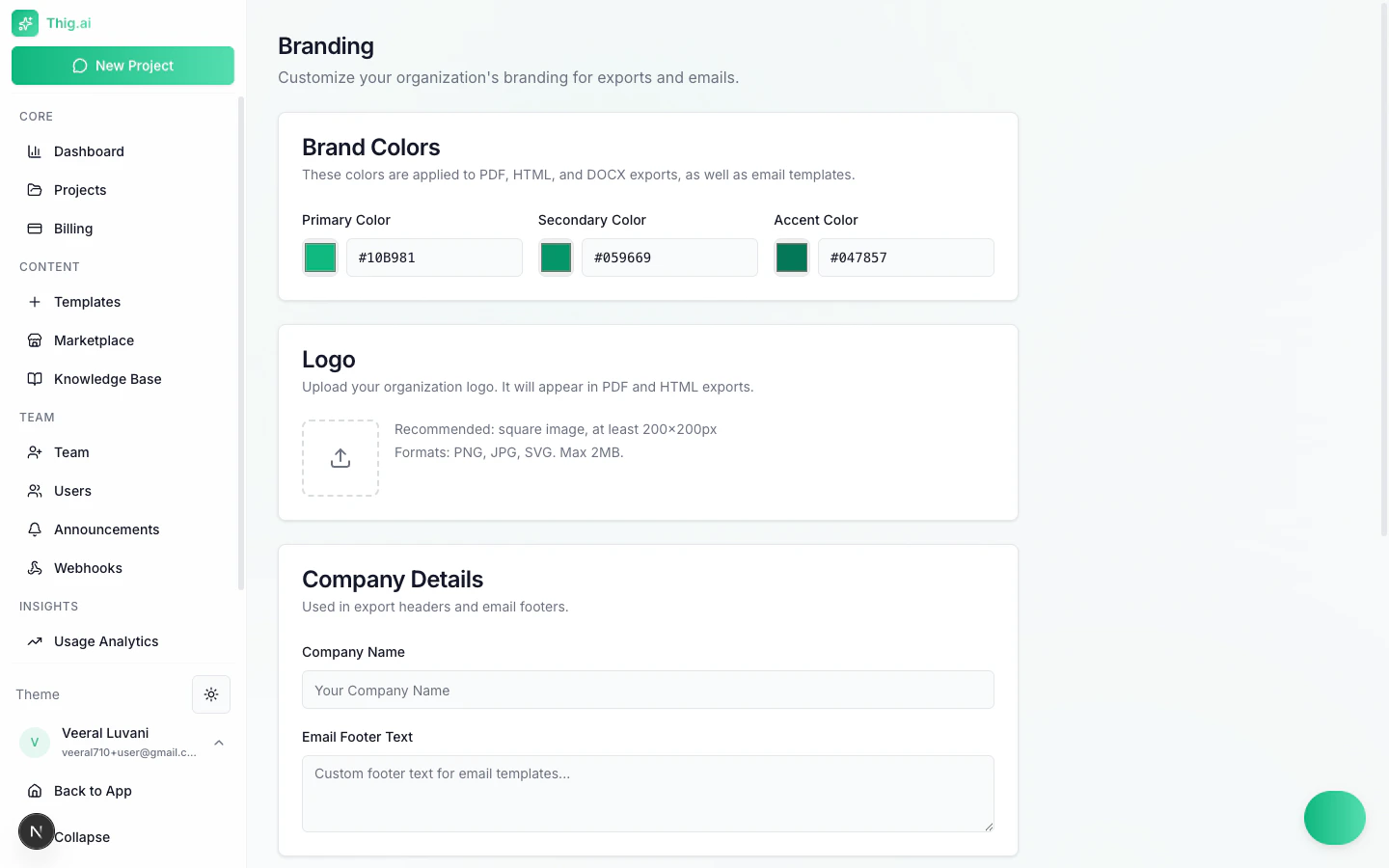 *Admin/Owner only*
Customize your organization's visual identity:
* **Primary color** — Default: #10B981 (emerald green)
* **Secondary color** — Default: #059669
* **Accent color** — Default: #047857
* **Company name**
* **Email footer text**
* **Logo** — Upload an image (max 2MB, drag-and-drop)
Branding colors are applied across the admin interface and in exported PDFs.
## Custom Domain (`/admin/settings/domain`)
*Business/Enterprise plans only*
Serve thig.ai from your own domain (e.g., `prd.yourcompany.com`):
1. Enter your custom domain
2. Add the CNAME and TXT DNS records shown
3. Wait for DNS propagation
4. Click **Verify Domain**
5. SSL is provisioned automatically
Domain changes are tracked in a history log.
## Integrations (`/admin/settings/integrations`)
*Admin/Owner only*
Customize your organization's visual identity:
* **Primary color** — Default: #10B981 (emerald green)
* **Secondary color** — Default: #059669
* **Accent color** — Default: #047857
* **Company name**
* **Email footer text**
* **Logo** — Upload an image (max 2MB, drag-and-drop)
Branding colors are applied across the admin interface and in exported PDFs.
## Custom Domain (`/admin/settings/domain`)
*Business/Enterprise plans only*
Serve thig.ai from your own domain (e.g., `prd.yourcompany.com`):
1. Enter your custom domain
2. Add the CNAME and TXT DNS records shown
3. Wait for DNS propagation
4. Click **Verify Domain**
5. SSL is provisioned automatically
Domain changes are tracked in a history log.
## Integrations (`/admin/settings/integrations`)
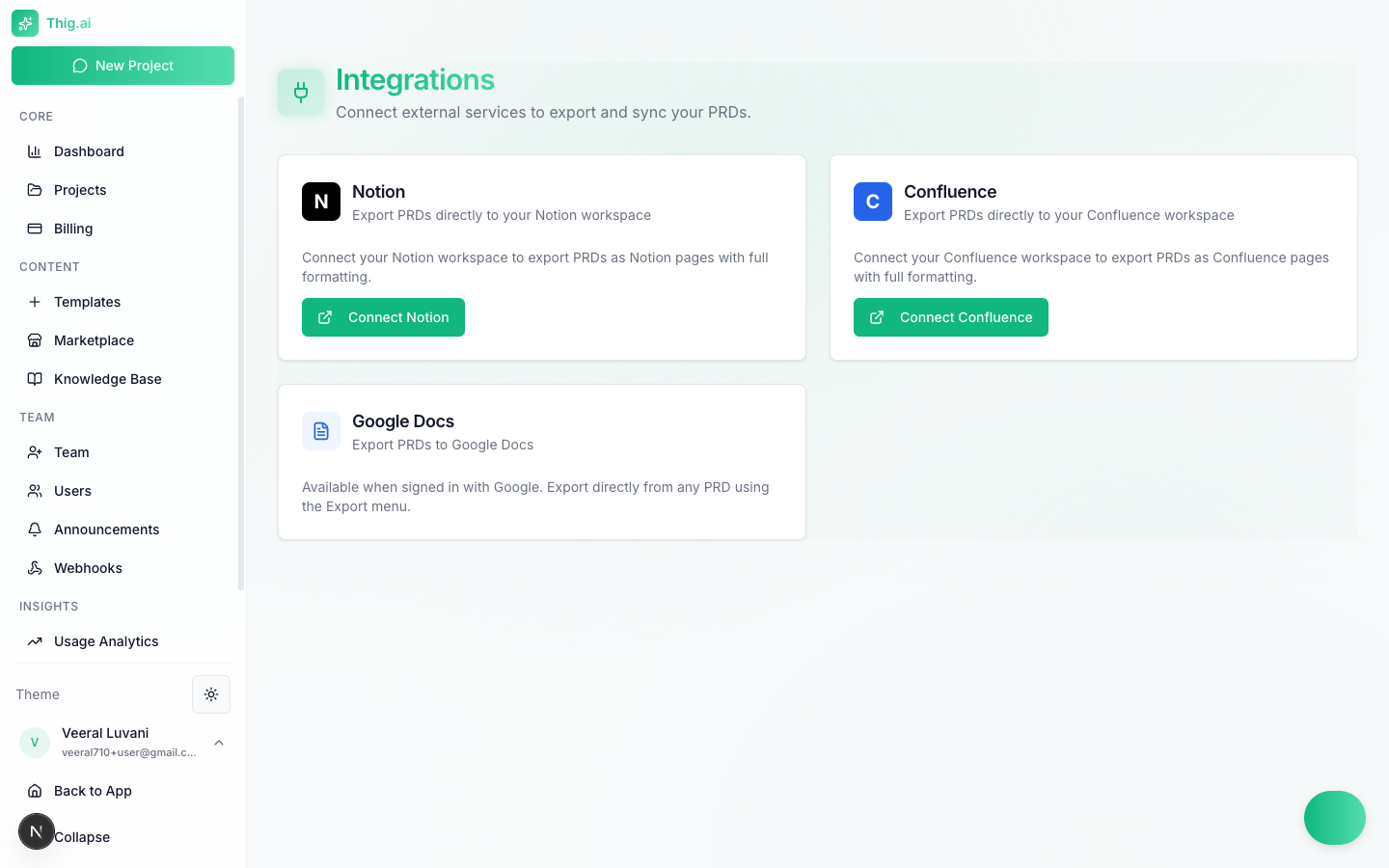 Connect third-party services:
### Notion
* Click **Connect Notion** → OAuth authorization
* Enables export to Notion pages
* Shows connected workspace name
### Google Docs
* Uses your Google sign-in credentials
* Enables export to Google Docs
* No additional setup needed if signed in with Google
### Confluence
* Click **Connect Confluence** → OAuth authorization
* Enables export to Confluence pages
## Security Settings (`/admin/settings/security`)
*All users*
Manage account security:
* **Two-Factor Authentication** — Enable/disable TOTP-based MFA with QR code setup and backup codes
* **Active Sessions** — View and revoke sessions across devices (browser, OS, IP, last active)
* **IP Allowlist** — (Enterprise) Restrict access to specific IP addresses or CIDR ranges
See the [Security guide](/user-guide/security) for full details.
## AI Configuration (`/admin/settings/ai-config`)
*Admin/Owner only*
Configure AI model behavior for your organization:
* **Default provider and tier** — Choose which provider and quality level to use
* **Task-level overrides** — Set specific model tiers for different tasks (chat, PRD generation, etc.)
* **Allowed models** — Restrict which models team members can select
See the [AI Model Configuration guide](/user-guide/ai-model-config) for full details.
## Scheduled Exports (`/admin/settings/scheduled-exports`)
*Pro+ plans*
Set up automatic recurring exports of your PRDs:
* Weekly, on-status-change, cron-based, or one-time schedules
* Email or webhook delivery
* Multiple formats (PDF, HTML, DOCX, Markdown)
* Run history and delivery log
See the [Exports guide](/user-guide/exports) for full details.
## Approval Workflows (`/admin/settings/approvals`)
*Enterprise plans*
Configure multi-approver workflows for critical actions:
* PRD publish, export, project delete, template publish
* Configurable required approval count
* Select specific approvers from your team
See the [Approval Workflows guide](/user-guide/approval-workflows) for full details.
## AI Memories (`/admin/settings/memories`)
Browse and manage what the AI has learned from your conversations:
* View extracted memories (preferences, decisions, context)
* Filter by type: preference, decision, context, feedback
* Edit or delete individual memories
* Memory conflict detection and resolution
## Developer Tools (`/admin/settings/developer`)
*Admin/Owner only*
Create and manage REST API keys for programmatic access. See the [Developer Tools guide](/user-guide/developer) for full details.
## Organization Settings (`/admin/settings`)
Connect third-party services:
### Notion
* Click **Connect Notion** → OAuth authorization
* Enables export to Notion pages
* Shows connected workspace name
### Google Docs
* Uses your Google sign-in credentials
* Enables export to Google Docs
* No additional setup needed if signed in with Google
### Confluence
* Click **Connect Confluence** → OAuth authorization
* Enables export to Confluence pages
## Security Settings (`/admin/settings/security`)
*All users*
Manage account security:
* **Two-Factor Authentication** — Enable/disable TOTP-based MFA with QR code setup and backup codes
* **Active Sessions** — View and revoke sessions across devices (browser, OS, IP, last active)
* **IP Allowlist** — (Enterprise) Restrict access to specific IP addresses or CIDR ranges
See the [Security guide](/user-guide/security) for full details.
## AI Configuration (`/admin/settings/ai-config`)
*Admin/Owner only*
Configure AI model behavior for your organization:
* **Default provider and tier** — Choose which provider and quality level to use
* **Task-level overrides** — Set specific model tiers for different tasks (chat, PRD generation, etc.)
* **Allowed models** — Restrict which models team members can select
See the [AI Model Configuration guide](/user-guide/ai-model-config) for full details.
## Scheduled Exports (`/admin/settings/scheduled-exports`)
*Pro+ plans*
Set up automatic recurring exports of your PRDs:
* Weekly, on-status-change, cron-based, or one-time schedules
* Email or webhook delivery
* Multiple formats (PDF, HTML, DOCX, Markdown)
* Run history and delivery log
See the [Exports guide](/user-guide/exports) for full details.
## Approval Workflows (`/admin/settings/approvals`)
*Enterprise plans*
Configure multi-approver workflows for critical actions:
* PRD publish, export, project delete, template publish
* Configurable required approval count
* Select specific approvers from your team
See the [Approval Workflows guide](/user-guide/approval-workflows) for full details.
## AI Memories (`/admin/settings/memories`)
Browse and manage what the AI has learned from your conversations:
* View extracted memories (preferences, decisions, context)
* Filter by type: preference, decision, context, feedback
* Edit or delete individual memories
* Memory conflict detection and resolution
## Developer Tools (`/admin/settings/developer`)
*Admin/Owner only*
Create and manage REST API keys for programmatic access. See the [Developer Tools guide](/user-guide/developer) for full details.
## Organization Settings (`/admin/settings`)
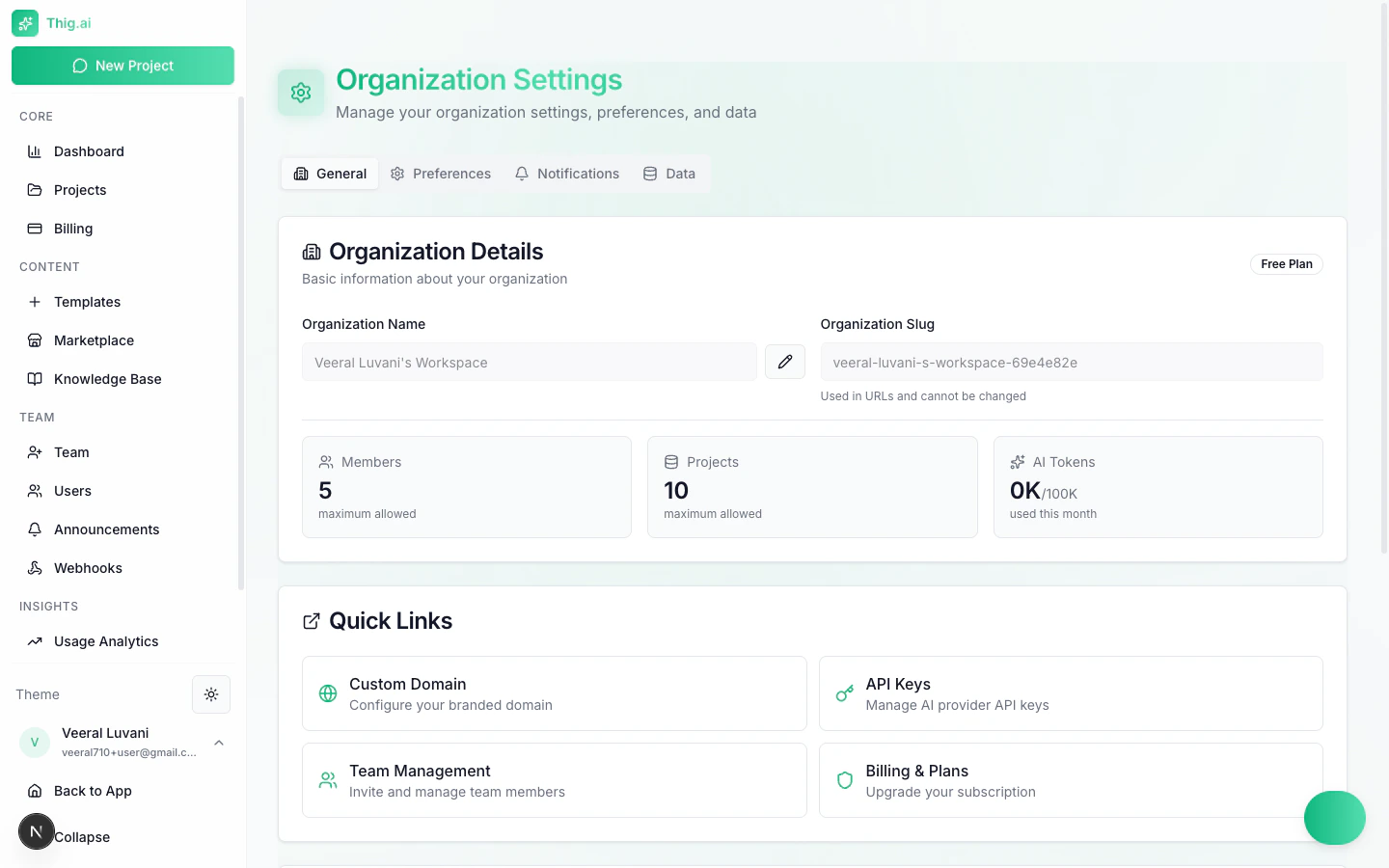 ### General
* Organization name and slug
* View current plan limits (members, projects, tokens)
* Default AI provider
### Notifications
Toggle email notifications:
* Project updates
* Team invite alerts
* Weekly digest
* Security alerts
See the [Notifications guide](/user-guide/notifications) for per-user preferences.
### Data Management
* **Backup** — Download full JSON backup of all organization data
* **Import** — Restore from a backup file
* **Delete All Projects** — Requires typing "delete all projects" to confirm
* **Delete Organization** — Requires typing the org name to confirm
Deleting the organization is permanent and removes all projects, members, and data.
### General
* Organization name and slug
* View current plan limits (members, projects, tokens)
* Default AI provider
### Notifications
Toggle email notifications:
* Project updates
* Team invite alerts
* Weekly digest
* Security alerts
See the [Notifications guide](/user-guide/notifications) for per-user preferences.
### Data Management
* **Backup** — Download full JSON backup of all organization data
* **Import** — Restore from a backup file
* **Delete All Projects** — Requires typing "delete all projects" to confirm
* **Delete Organization** — Requires typing the org name to confirm
Deleting the organization is permanent and removes all projects, members, and data.