> ## Documentation Index
> Fetch the complete documentation index at: https://docs.thig.ai/llms.txt
> Use this file to discover all available pages before exploring further.
# Projects
> Create, manage, and organize your PRD projects
# Projects
Projects are the core unit in thig.ai. Each project contains an AI conversation, a generated PRD document, files, comments, and stakeholder views.
## Creating a Project
There are several ways to create a project:
1. **From the Chat page** (`/chat`) — Pick a template or start blank
2. **From the Dashboard** — Click "New Chat" in the sidebar
3. **Command Palette** — Press `Cmd+K` and select "New Project"
4. **Projects page** — Click the "New Project" button
### From a Template
1. Browse templates by category (SaaS, Mobile, eCommerce, etc.)
2. Click a template card to preview its structure, sections, and sample questions
3. Enter a project name
4. Click "Create Project" to start the AI conversation
### Quick Start
Use the quick-start flow to create a project from a pre-configured template with minimal setup.
## Project Statuses
Projects progress through seven statuses:
| Status | Description |
| ----------------- | -------------------------------------------------- |
| **Draft** | Initial state — requirements gathering in progress |
| **In Progress** | Actively being worked on |
| **Ready for PRD** | Enough requirements gathered to generate |
| **In Review** | PRD generated and under review |
| **Approved** | PRD approved by stakeholders |
| **Completed** | Project finalized |
| **Archived** | No longer active |
Change status from the project's status badge (click to open the status selector) or from the Projects table.
## Managing Projects
### Projects Table (`/admin/projects`)
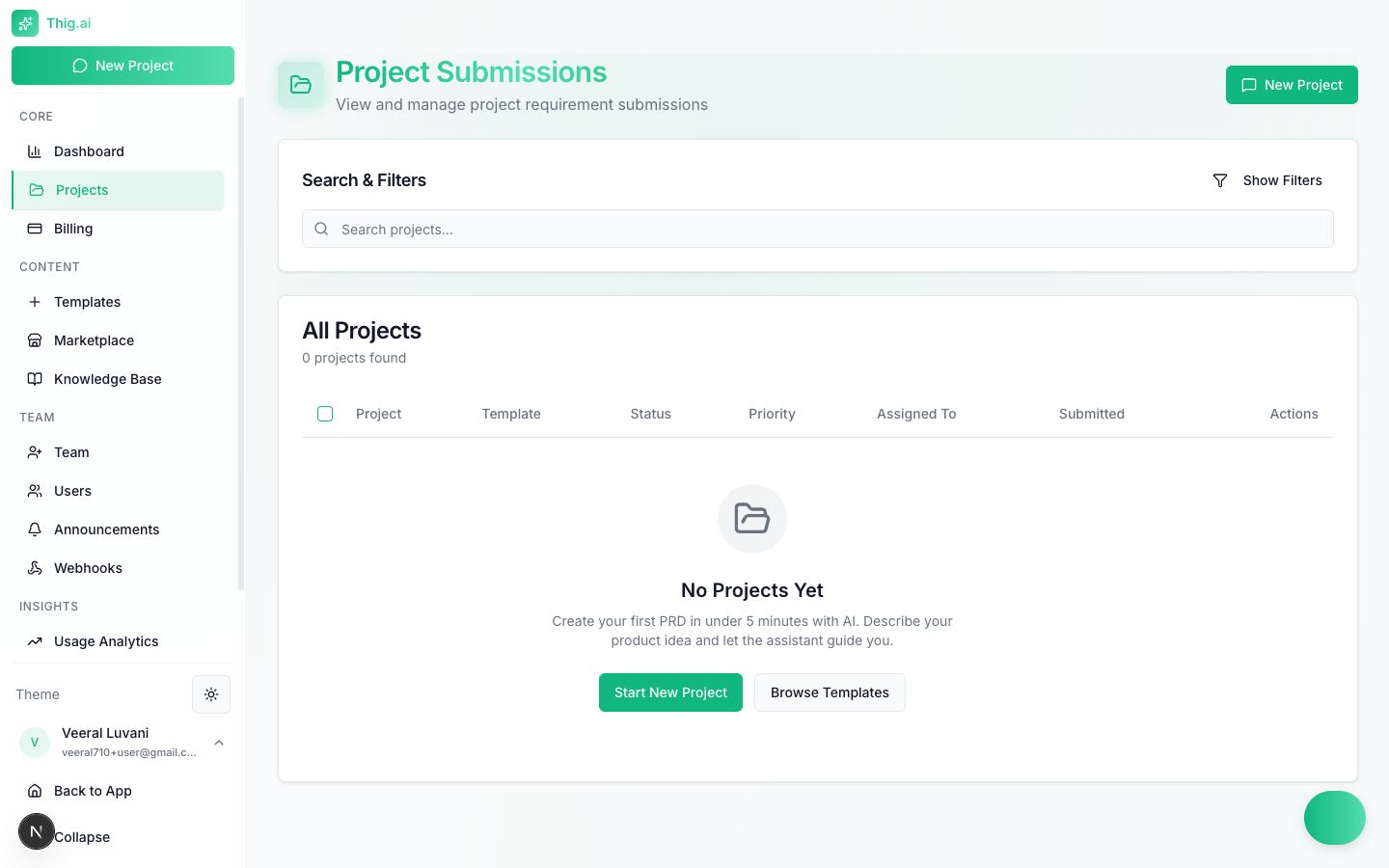 The projects page shows all organization projects with:
* **Search** — Filter by project name
* **Status filter** — Show only projects in a specific status
* **Sort** — By name, date, or status
* **Per-row actions** — View PRD, edit, download, share, delete
### Bulk Actions
Select multiple projects to:
* **Bulk delete** — Remove selected projects
* **Bulk status change** — Move all to a new status
* **Bulk export** — Download PDFs/HTML/DOCX for all selected
* **Bulk assign** — Assign all to a team member
### Project Assignment
Assign projects to specific team members for accountability. Assigned projects appear in that member's filtered view.
## Project Details
Each project has:
* **AI Conversation** — The chat history with gathered requirements
* **PRD Document** — The generated document with version history
* **Files** — Uploaded documents and images organized in folders
* **Comments** — Threaded discussions on the PRD
* **Stakeholder Views** — AI-generated perspective documents
* **External Links** — URLs to related resources (Figma, Jira, GitHub, etc.)
* **Activity Feed** — Timeline of all project events
* **Status History** — Timeline of status changes with notes
## Project Types
Projects have two types:
| Type | Purpose |
| ---------------------- | ----------------------------------------------------------------------------- |
| **Standard** (default) | A regular PRD project for a single feature or product spec |
| **Product** | A parent container that groups related feature projects in the Portfolio view |
To create a Product project, set the project type to "Product" when creating or editing a project.
### Portfolio View
Switch to **Portfolio** view on the Projects page to see products with their linked sub-features:
* Product projects appear as expandable cards showing all linked features
* Standalone projects (not linked to any product) appear separately
* Each product shows a progress summary across its sub-features
* Filter by workspace to see only one team's products
To link a standard project as a sub-feature of a product:
1. Open the project's action menu
2. Select **Link to Product**
3. Choose the parent product project
See [How It All Fits Together](/user-guide/how-it-works) for a detailed explanation of the project hierarchy.
## Assigning Projects to Workspaces
Projects can be assigned to [team workspaces](/user-guide/workspaces) for organizational clarity:
1. Open the project's action menu
2. Select **Assign to Workspace**
3. Choose the target workspace
Projects assigned to a workspace appear when filtering by that workspace in the Projects or Portfolio view.
## Chat Export
Export the AI conversation history in multiple formats:
* **PDF** — Formatted conversation transcript
* **CSV** — Spreadsheet-compatible data
* **JSON** — Raw data for integrations
The projects page shows all organization projects with:
* **Search** — Filter by project name
* **Status filter** — Show only projects in a specific status
* **Sort** — By name, date, or status
* **Per-row actions** — View PRD, edit, download, share, delete
### Bulk Actions
Select multiple projects to:
* **Bulk delete** — Remove selected projects
* **Bulk status change** — Move all to a new status
* **Bulk export** — Download PDFs/HTML/DOCX for all selected
* **Bulk assign** — Assign all to a team member
### Project Assignment
Assign projects to specific team members for accountability. Assigned projects appear in that member's filtered view.
## Project Details
Each project has:
* **AI Conversation** — The chat history with gathered requirements
* **PRD Document** — The generated document with version history
* **Files** — Uploaded documents and images organized in folders
* **Comments** — Threaded discussions on the PRD
* **Stakeholder Views** — AI-generated perspective documents
* **External Links** — URLs to related resources (Figma, Jira, GitHub, etc.)
* **Activity Feed** — Timeline of all project events
* **Status History** — Timeline of status changes with notes
## Project Types
Projects have two types:
| Type | Purpose |
| ---------------------- | ----------------------------------------------------------------------------- |
| **Standard** (default) | A regular PRD project for a single feature or product spec |
| **Product** | A parent container that groups related feature projects in the Portfolio view |
To create a Product project, set the project type to "Product" when creating or editing a project.
### Portfolio View
Switch to **Portfolio** view on the Projects page to see products with their linked sub-features:
* Product projects appear as expandable cards showing all linked features
* Standalone projects (not linked to any product) appear separately
* Each product shows a progress summary across its sub-features
* Filter by workspace to see only one team's products
To link a standard project as a sub-feature of a product:
1. Open the project's action menu
2. Select **Link to Product**
3. Choose the parent product project
See [How It All Fits Together](/user-guide/how-it-works) for a detailed explanation of the project hierarchy.
## Assigning Projects to Workspaces
Projects can be assigned to [team workspaces](/user-guide/workspaces) for organizational clarity:
1. Open the project's action menu
2. Select **Assign to Workspace**
3. Choose the target workspace
Projects assigned to a workspace appear when filtering by that workspace in the Projects or Portfolio view.
## Chat Export
Export the AI conversation history in multiple formats:
* **PDF** — Formatted conversation transcript
* **CSV** — Spreadsheet-compatible data
* **JSON** — Raw data for integrations