> ## Documentation Index
> Fetch the complete documentation index at: https://docs.thig.ai/llms.txt
> Use this file to discover all available pages before exploring further.
# AI Profile & Preferences
> Customize how AI generates PRDs based on your preferences and context
# AI Profile & Preferences
The AI Profile Settings page (`/admin/settings/profile`) lets you personalize how the AI generates PRDs. The more context you provide, the more tailored and relevant your documents will be.
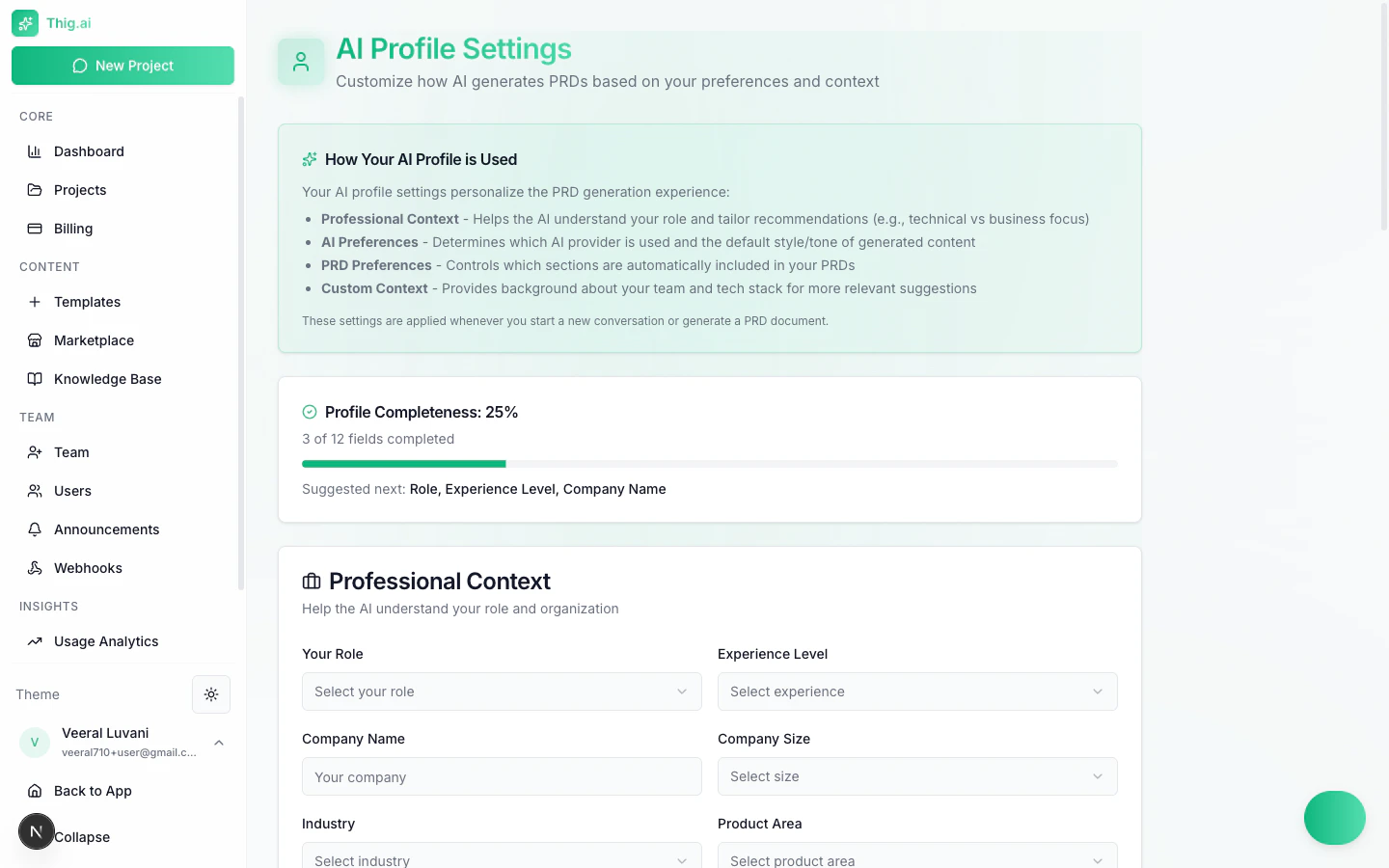 ## How Your AI Profile Is Used
An info box at the top of the page explains the four areas your profile influences:
1. **Question selection** — The AI asks more relevant follow-up questions based on your role and industry
2. **Document structure** — PRD sections and depth adapt to your experience level and preferences
3. **Technical depth** — Detail level adjusts based on your tech stack and audience
4. **Tone and style** — Writing style matches your preferred tone and formality
## Profile Completeness
A progress indicator shows how much of your profile is filled in (e.g., "25% -- 3 of 12 fields completed"). Completing more fields produces better AI output.
## Professional Context
| Field | Description | Examples |
| -------------------- | -------------------------- | ---------------------------------------------- |
| **Role** | Your job title or function | Product Manager, Senior PM, Founder, Developer |
| **Experience Level** | Your seniority | Junior, Mid, Senior, Principal, C-Level |
| **Company Name** | Your organization | |
| **Company Size** | Number of employees | Startup, Small, Medium, Large, Enterprise |
| **Industry** | Your market vertical | SaaS, FinTech, Healthcare, eCommerce, etc. |
| **Product Area** | What you build | Mobile App, Web Platform, API, Internal Tool |
## AI Preferences
| Setting | Options |
| ------------------------- | ------------------------------------------ |
| **Preferred AI Provider** | OpenAI, Anthropic, Gemini |
| **Document Style** | Formal, Conversational, Technical, Concise |
| **Detail Level** | High-level, Balanced, Detailed |
| **Tone Preference** | Professional, Casual, Academic, Direct |
## PRD Preferences
Toggle which sections the AI includes by default in generated PRDs:
* User Stories
* Technical Specifications
* Timeline and Milestones
* Risks and Mitigations
* Success Metrics
Even if you disable a section here, you can always ask the AI to add it during the conversation. These defaults simply set the starting structure.
## Custom Context
Three free-text fields give the AI deeper understanding of your environment:
* **General Context** — Personal preferences, recurring instructions, or constraints the AI should always consider
* **Team Context** — Team structure, processes, methodology (Agile, Scrum, etc.), and collaboration norms
* **Tech Stack Context** — Languages, frameworks, infrastructure, and tools your team uses
Custom context is included in every AI conversation you start. Keep it concise and up to date for best results.
## Input Preferences
### Document Upload
* **Enable/disable** document upload during chat
* **Auto-process** toggle — Automatically extract content from uploaded files
### Voice Input
* **Enable/disable** voice input in the chat interface
* **Auto-transcribe** toggle — Automatically convert speech to text
* **Preferred language** — Language for transcription
## Timezone
Select your timezone from a searchable dropdown. The current time in your selected timezone is displayed next to the picker. All dates across the platform (dashboards, exports, emails, audit logs) respect this setting.
For Google OAuth users, the timezone is auto-detected from your browser on first sign-in. You can change it here at any time.
## Notifications
| Toggle | Description |
| ----------------- | ---------------------------------------------------- |
| **Daily Digest** | Receive a daily summary of project activity |
| **Weekly Report** | Receive a weekly overview of team usage and progress |
## Saving Changes
Click **Save Profile** to persist all changes. Use **Reset** to revert to the last saved state.
Resetting discards all unsaved changes across every section on the page, not just the section you are viewing.
## How Your AI Profile Is Used
An info box at the top of the page explains the four areas your profile influences:
1. **Question selection** — The AI asks more relevant follow-up questions based on your role and industry
2. **Document structure** — PRD sections and depth adapt to your experience level and preferences
3. **Technical depth** — Detail level adjusts based on your tech stack and audience
4. **Tone and style** — Writing style matches your preferred tone and formality
## Profile Completeness
A progress indicator shows how much of your profile is filled in (e.g., "25% -- 3 of 12 fields completed"). Completing more fields produces better AI output.
## Professional Context
| Field | Description | Examples |
| -------------------- | -------------------------- | ---------------------------------------------- |
| **Role** | Your job title or function | Product Manager, Senior PM, Founder, Developer |
| **Experience Level** | Your seniority | Junior, Mid, Senior, Principal, C-Level |
| **Company Name** | Your organization | |
| **Company Size** | Number of employees | Startup, Small, Medium, Large, Enterprise |
| **Industry** | Your market vertical | SaaS, FinTech, Healthcare, eCommerce, etc. |
| **Product Area** | What you build | Mobile App, Web Platform, API, Internal Tool |
## AI Preferences
| Setting | Options |
| ------------------------- | ------------------------------------------ |
| **Preferred AI Provider** | OpenAI, Anthropic, Gemini |
| **Document Style** | Formal, Conversational, Technical, Concise |
| **Detail Level** | High-level, Balanced, Detailed |
| **Tone Preference** | Professional, Casual, Academic, Direct |
## PRD Preferences
Toggle which sections the AI includes by default in generated PRDs:
* User Stories
* Technical Specifications
* Timeline and Milestones
* Risks and Mitigations
* Success Metrics
Even if you disable a section here, you can always ask the AI to add it during the conversation. These defaults simply set the starting structure.
## Custom Context
Three free-text fields give the AI deeper understanding of your environment:
* **General Context** — Personal preferences, recurring instructions, or constraints the AI should always consider
* **Team Context** — Team structure, processes, methodology (Agile, Scrum, etc.), and collaboration norms
* **Tech Stack Context** — Languages, frameworks, infrastructure, and tools your team uses
Custom context is included in every AI conversation you start. Keep it concise and up to date for best results.
## Input Preferences
### Document Upload
* **Enable/disable** document upload during chat
* **Auto-process** toggle — Automatically extract content from uploaded files
### Voice Input
* **Enable/disable** voice input in the chat interface
* **Auto-transcribe** toggle — Automatically convert speech to text
* **Preferred language** — Language for transcription
## Timezone
Select your timezone from a searchable dropdown. The current time in your selected timezone is displayed next to the picker. All dates across the platform (dashboards, exports, emails, audit logs) respect this setting.
For Google OAuth users, the timezone is auto-detected from your browser on first sign-in. You can change it here at any time.
## Notifications
| Toggle | Description |
| ----------------- | ---------------------------------------------------- |
| **Daily Digest** | Receive a daily summary of project activity |
| **Weekly Report** | Receive a weekly overview of team usage and progress |
## Saving Changes
Click **Save Profile** to persist all changes. Use **Reset** to revert to the last saved state.
Resetting discards all unsaved changes across every section on the page, not just the section you are viewing.