> ## Documentation Index
> Fetch the complete documentation index at: https://docs.thig.ai/llms.txt
> Use this file to discover all available pages before exploring further.
# Knowledge Base & AI Memory
> Manage what AI remembers about your preferences and past conversations
# Knowledge Base & AI Memory
The Knowledge Base (called **AI Memory** in the app) stores what the AI has learned about your preferences, decisions, and context from past conversations. This helps the AI generate more relevant and personalized PRDs over time.
For a visual explanation of how Knowledge Base and AI Memory feed into every AI conversation, see [How AI Gets Smart](/user-guide/how-ai-context-works).
## Overview
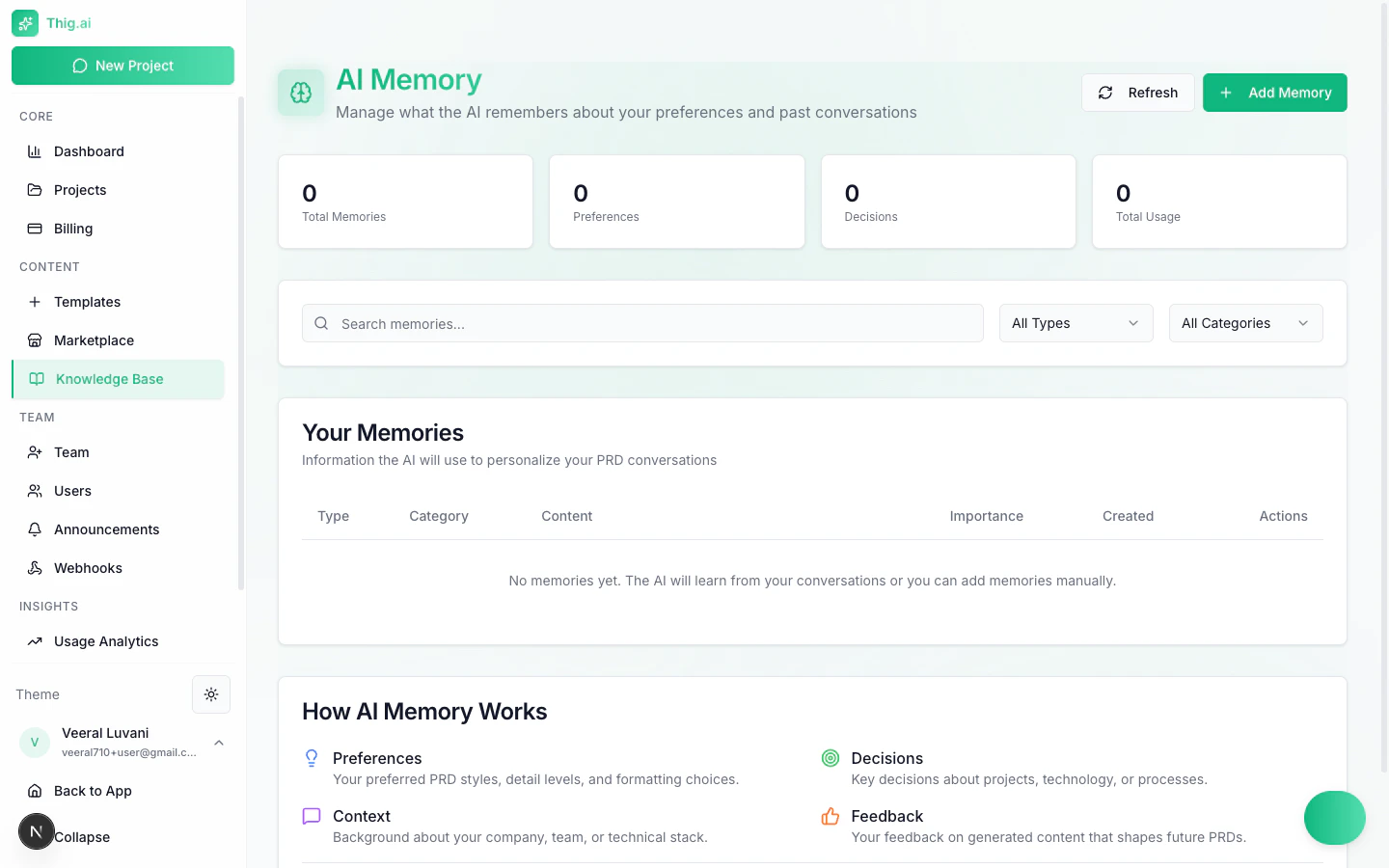
Navigate to **Settings > Knowledge Base** (`/admin/settings/memories`) to view and manage all stored memories.
 ### Stats Cards
The top of the page displays four summary cards:
| Stat | Description |
| ------------------ | ----------------------------------------------------------------- |
| **Total Memories** | Total number of stored memory entries |
| **Preferences** | Memories about your PRD style, formatting, and detail preferences |
| **Decisions** | Key decisions recorded about projects, technology, and processes |
| **Total Usage** | How many times memories have been referenced by the AI |
## Searching and Filtering
Use the controls above the memory table to find specific entries:
* **Search box** -- Free-text search across memory content
* **Type filter** -- Filter by memory type (All Types, Preferences, Decisions, Context, Feedback)
* **Category filter** -- Filter by category (All Categories, or specific categories)
## Memory Table
The table displays all stored memories with the following columns:
| Column | Description |
| -------------- | --------------------------------------------------------------------- |
| **Type** | The memory classification (Preferences, Decisions, Context, Feedback) |
| **Category** | Grouping label for the memory |
| **Content** | The actual information the AI has stored |
| **Importance** | Priority level -- higher importance memories are used first |
| **Created** | When the memory was recorded |
| **Actions** | Edit or delete the memory |
## How AI Memory Works
The AI extracts and stores four types of memory from your conversations:
1. **Preferences** -- PRD styles, detail levels, formatting choices, and section preferences you express during conversations
2. **Decisions** -- Key decisions you make about projects, technology choices, and processes that should carry forward
3. **Context** -- Background information about your company, team structure, and tech stack that helps the AI understand your environment
4. **Feedback** -- Your feedback on generated content that shapes how future PRDs are written
Memories are automatically extracted from conversations. You do not need to explicitly tell the AI to remember something -- it picks up on your preferences naturally.
## Adding Memories Manually
Click the **Add Memory** button to create a memory entry directly:
1. Select the memory **Type** (Preferences, Decisions, Context, or Feedback)
2. Choose or enter a **Category**
3. Write the memory **Content**
4. Set the **Importance** level
Higher importance memories are prioritized when the AI generates PRDs. If you have conflicting preferences, increase the importance of the one you want the AI to follow.
## Managing Memories
* **Edit** -- Click the action menu on any memory to update its content or importance
* **Delete** -- Remove memories that are no longer relevant
* **Bulk management** -- Periodically review your memories to keep them accurate and up to date
Deleting a memory is permanent. The AI will no longer reference that information when generating PRDs.
## Shared Knowledge Base
*Admin/Owner only*
In addition to per-user AI memories, your organization has a **Shared Knowledge Base** (`/admin/shared-kb`) for storing reference documents and context that all team members benefit from.
### Folders and Files
Organize shared knowledge into folders:
1. Go to **Shared Knowledge Base** (`/admin/shared-kb`)
2. Create folders for different topics (e.g., "Product Strategy", "Tech Stack", "Design Guidelines")
3. Upload files or create text entries within each folder
### How It's Used
The shared knowledge base provides context to the AI during conversations:
* **Auto-save** — Key information from AI conversations is automatically saved to the knowledge base (fire-and-forget, no manual action needed)
* **Cross-project search** — The AI searches across all projects and knowledge base entries to find relevant context
* **Relevance ranking** — Entries are ranked by relevance using embeddings and a budget manager ensures the most useful context fits within token limits
* **Deduplication** — Entries are deduplicated by name within each folder to prevent redundancy
### Embeddings
Knowledge base entries are processed into vector embeddings for semantic search. This happens asynchronously via a processing queue — there may be a short delay before newly added entries appear in AI search results.
## Memory Conflict Detection
When the AI extracts a new memory that contradicts an existing one, the conflict detection system:
1. Identifies the conflicting entries
2. Presents both to you for resolution
3. Keeps the one you choose and archives the other
This prevents outdated preferences from overriding your current decisions.
## Memory Decay
Memories that haven't been referenced for an extended period automatically have their relevance scores reduced. This ensures the AI prioritizes recent, actively-used context over stale information.
### Stats Cards
The top of the page displays four summary cards:
| Stat | Description |
| ------------------ | ----------------------------------------------------------------- |
| **Total Memories** | Total number of stored memory entries |
| **Preferences** | Memories about your PRD style, formatting, and detail preferences |
| **Decisions** | Key decisions recorded about projects, technology, and processes |
| **Total Usage** | How many times memories have been referenced by the AI |
## Searching and Filtering
Use the controls above the memory table to find specific entries:
* **Search box** -- Free-text search across memory content
* **Type filter** -- Filter by memory type (All Types, Preferences, Decisions, Context, Feedback)
* **Category filter** -- Filter by category (All Categories, or specific categories)
## Memory Table
The table displays all stored memories with the following columns:
| Column | Description |
| -------------- | --------------------------------------------------------------------- |
| **Type** | The memory classification (Preferences, Decisions, Context, Feedback) |
| **Category** | Grouping label for the memory |
| **Content** | The actual information the AI has stored |
| **Importance** | Priority level -- higher importance memories are used first |
| **Created** | When the memory was recorded |
| **Actions** | Edit or delete the memory |
## How AI Memory Works
The AI extracts and stores four types of memory from your conversations:
1. **Preferences** -- PRD styles, detail levels, formatting choices, and section preferences you express during conversations
2. **Decisions** -- Key decisions you make about projects, technology choices, and processes that should carry forward
3. **Context** -- Background information about your company, team structure, and tech stack that helps the AI understand your environment
4. **Feedback** -- Your feedback on generated content that shapes how future PRDs are written
Memories are automatically extracted from conversations. You do not need to explicitly tell the AI to remember something -- it picks up on your preferences naturally.
## Adding Memories Manually
Click the **Add Memory** button to create a memory entry directly:
1. Select the memory **Type** (Preferences, Decisions, Context, or Feedback)
2. Choose or enter a **Category**
3. Write the memory **Content**
4. Set the **Importance** level
Higher importance memories are prioritized when the AI generates PRDs. If you have conflicting preferences, increase the importance of the one you want the AI to follow.
## Managing Memories
* **Edit** -- Click the action menu on any memory to update its content or importance
* **Delete** -- Remove memories that are no longer relevant
* **Bulk management** -- Periodically review your memories to keep them accurate and up to date
Deleting a memory is permanent. The AI will no longer reference that information when generating PRDs.
## Shared Knowledge Base
*Admin/Owner only*
In addition to per-user AI memories, your organization has a **Shared Knowledge Base** (`/admin/shared-kb`) for storing reference documents and context that all team members benefit from.
### Folders and Files
Organize shared knowledge into folders:
1. Go to **Shared Knowledge Base** (`/admin/shared-kb`)
2. Create folders for different topics (e.g., "Product Strategy", "Tech Stack", "Design Guidelines")
3. Upload files or create text entries within each folder
### How It's Used
The shared knowledge base provides context to the AI during conversations:
* **Auto-save** — Key information from AI conversations is automatically saved to the knowledge base (fire-and-forget, no manual action needed)
* **Cross-project search** — The AI searches across all projects and knowledge base entries to find relevant context
* **Relevance ranking** — Entries are ranked by relevance using embeddings and a budget manager ensures the most useful context fits within token limits
* **Deduplication** — Entries are deduplicated by name within each folder to prevent redundancy
### Embeddings
Knowledge base entries are processed into vector embeddings for semantic search. This happens asynchronously via a processing queue — there may be a short delay before newly added entries appear in AI search results.
## Memory Conflict Detection
When the AI extracts a new memory that contradicts an existing one, the conflict detection system:
1. Identifies the conflicting entries
2. Presents both to you for resolution
3. Keeps the one you choose and archives the other
This prevents outdated preferences from overriding your current decisions.
## Memory Decay
Memories that haven't been referenced for an extended period automatically have their relevance scores reduced. This ensures the AI prioritizes recent, actively-used context over stale information.