> ## Documentation Index
> Fetch the complete documentation index at: https://docs.thig.ai/llms.txt
> Use this file to discover all available pages before exploring further.
# Integrations
> Connect Notion, Confluence, and Google Docs for seamless PRD exports
# Integrations
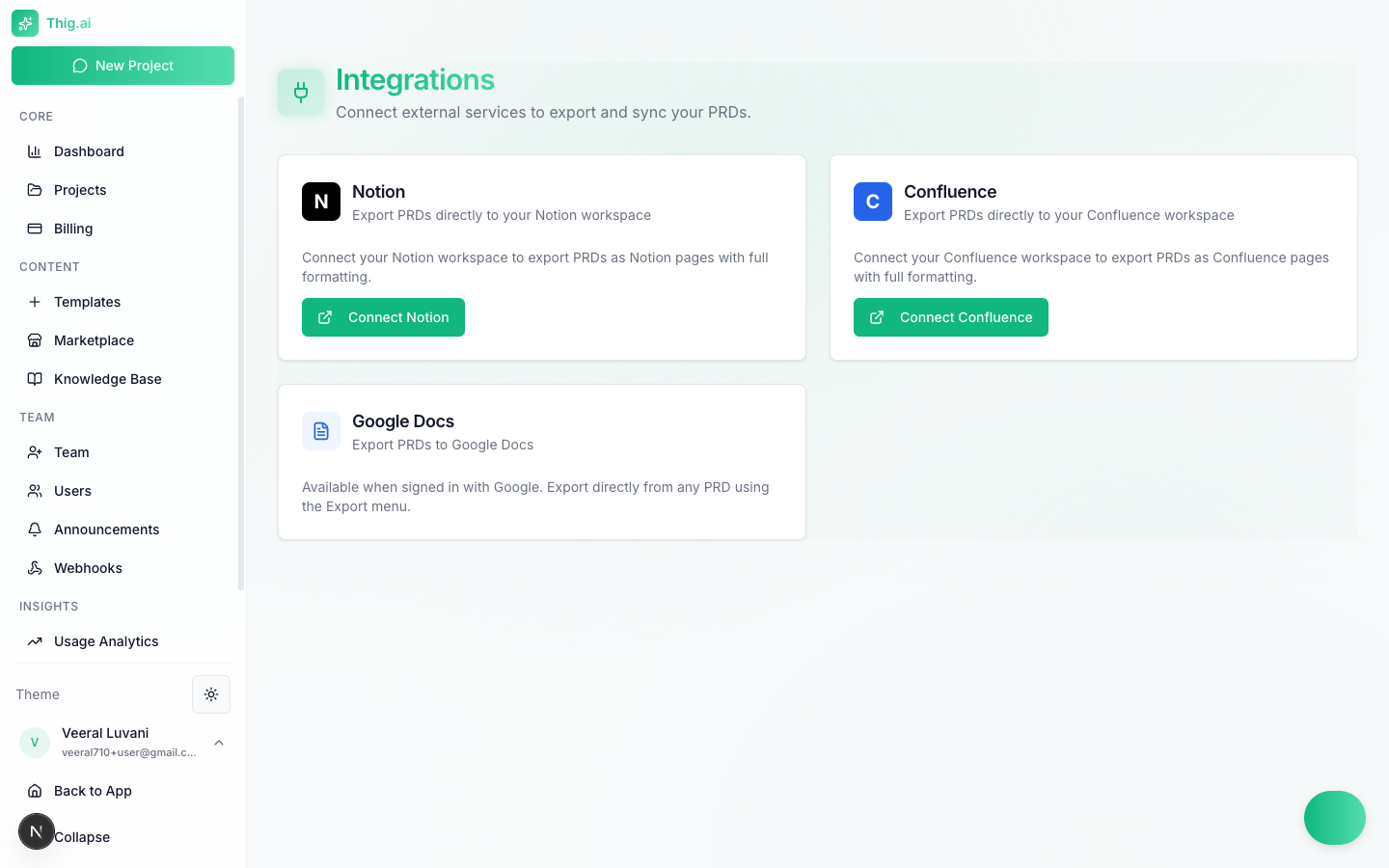
Connect third-party services to export your PRDs directly to the tools your team already uses. Manage integrations at **Settings > Integrations**.
 ***
## Notion
Export PRDs as fully formatted Notion pages — headings, tables, code blocks, and lists are all preserved.
### Setup
1. Go to **Settings > Integrations**
2. Click **Connect Notion**
3. You'll be redirected to Notion's authorization page
4. Select the workspace you want to connect
5. Click **Allow access**
6. You'll be redirected back to thig.ai with a success message
### Required Permissions
When authorizing, Notion grants thig.ai permission to:
* **Create pages** in your workspace
* **Read basic workspace info** (workspace name and ID)
thig.ai does **not** read your existing Notion content — it only creates new pages during export.
### Exporting to Notion
1. Open any PRD in the review page
2. Click **Export** in the toolbar
3. Select **Notion**
4. Optionally choose a **parent page** to nest your PRD under
5. Click **Export** — a new Notion page is created with your full PRD
### Disconnecting
1. Go to **Settings > Integrations**
2. Click **Disconnect** on the Notion card
3. You can reconnect at any time
Disconnecting removes the OAuth token from thig.ai but does not delete pages already exported to Notion.
***
## Confluence
Export PRDs as Confluence pages with full formatting. Supports automatic space selection and parent page nesting.
### Setup
1. Go to **Settings > Integrations**
2. Click **Connect Confluence**
3. You'll be redirected to Atlassian's authorization page
4. Select the Atlassian site to connect (if you have multiple)
5. Click **Accept**
6. You'll be redirected back to thig.ai with a success message
### Required Permissions
The Confluence integration requests these OAuth scopes:
| Scope | Purpose |
| ------------------------------- | ------------------------------------------------------------------ |
| `write:confluence-content` | Create pages in your Confluence workspace |
| `read:confluence-content.all` | Read page structure for parent page selection |
| `read:confluence-space.summary` | List available spaces |
| `offline_access` | Refresh the token when it expires (so you don't need to reconnect) |
### Exporting to Confluence
1. Open any PRD in the review page
2. Click **Export** in the toolbar
3. Select **Confluence**
4. Optionally choose a **space** and **parent page**
5. Click **Export** — a new Confluence page is created
If no space is selected, thig.ai exports to the first available space in your Confluence site.
### Token Refresh
Confluence OAuth tokens expire periodically. thig.ai automatically refreshes the token using the offline access grant — you should not need to reconnect. If a refresh fails, you'll be prompted to reconnect.
### Disconnecting
1. Go to **Settings > Integrations**
2. Click **Disconnect** on the Confluence card
3. Both the access token and refresh token are removed
***
## Google Docs
Export PRDs as Google Docs with headings, tables, and formatting preserved.
### Setup
Google Docs integration requires **no additional setup** — it uses the same Google OAuth credentials from your Google sign-in.
Google Docs export is only available if you signed in to thig.ai with your Google account. If you registered with email/password, this option is not available.
### Exporting to Google Docs
1. Open any PRD in the review page
2. Click **Export** in the toolbar
3. Select **Google Docs**
4. A new Google Doc is created in your Google Drive
5. The document URL is returned — click to open it
***
## Troubleshooting
| Error | Cause | Solution |
| ----------------------------------- | ------------------------------------------------------------------------ | -------------------------------------------------- |
| "Integration is not configured yet" | OAuth credentials are not set up on the server | Contact your platform administrator |
| "Connection was denied" | You clicked "Deny" on the OAuth authorization page | Try again and click "Allow" |
| "Security verification failed" | CSRF state mismatch — may happen if the connection attempt took too long | Try connecting again |
| "Failed to save connection" | Database error while saving the OAuth token | Try again; if it persists, contact support |
| "Not connected" error during export | The integration was disconnected or the token expired | Reconnect from **Settings > Integrations** |
| "No Confluence spaces found" | Your Confluence site has no spaces created | Create a space in Confluence first, then try again |
| "Cloud ID not found" | Confluence site couldn't be resolved | Reconnect your Confluence workspace |
### Connection Status
The Integrations page shows the current status for each service:
* **Connected** — Green badge with workspace/site name and connection date
* **Not connected** — Connect button available
### Data & Privacy
* OAuth tokens are stored encrypted in the database
* thig.ai only creates new content in connected services — it does not read or modify your existing pages
* Disconnecting immediately removes stored tokens
* Exported pages belong to your account in the target service
***
## Notion
Export PRDs as fully formatted Notion pages — headings, tables, code blocks, and lists are all preserved.
### Setup
1. Go to **Settings > Integrations**
2. Click **Connect Notion**
3. You'll be redirected to Notion's authorization page
4. Select the workspace you want to connect
5. Click **Allow access**
6. You'll be redirected back to thig.ai with a success message
### Required Permissions
When authorizing, Notion grants thig.ai permission to:
* **Create pages** in your workspace
* **Read basic workspace info** (workspace name and ID)
thig.ai does **not** read your existing Notion content — it only creates new pages during export.
### Exporting to Notion
1. Open any PRD in the review page
2. Click **Export** in the toolbar
3. Select **Notion**
4. Optionally choose a **parent page** to nest your PRD under
5. Click **Export** — a new Notion page is created with your full PRD
### Disconnecting
1. Go to **Settings > Integrations**
2. Click **Disconnect** on the Notion card
3. You can reconnect at any time
Disconnecting removes the OAuth token from thig.ai but does not delete pages already exported to Notion.
***
## Confluence
Export PRDs as Confluence pages with full formatting. Supports automatic space selection and parent page nesting.
### Setup
1. Go to **Settings > Integrations**
2. Click **Connect Confluence**
3. You'll be redirected to Atlassian's authorization page
4. Select the Atlassian site to connect (if you have multiple)
5. Click **Accept**
6. You'll be redirected back to thig.ai with a success message
### Required Permissions
The Confluence integration requests these OAuth scopes:
| Scope | Purpose |
| ------------------------------- | ------------------------------------------------------------------ |
| `write:confluence-content` | Create pages in your Confluence workspace |
| `read:confluence-content.all` | Read page structure for parent page selection |
| `read:confluence-space.summary` | List available spaces |
| `offline_access` | Refresh the token when it expires (so you don't need to reconnect) |
### Exporting to Confluence
1. Open any PRD in the review page
2. Click **Export** in the toolbar
3. Select **Confluence**
4. Optionally choose a **space** and **parent page**
5. Click **Export** — a new Confluence page is created
If no space is selected, thig.ai exports to the first available space in your Confluence site.
### Token Refresh
Confluence OAuth tokens expire periodically. thig.ai automatically refreshes the token using the offline access grant — you should not need to reconnect. If a refresh fails, you'll be prompted to reconnect.
### Disconnecting
1. Go to **Settings > Integrations**
2. Click **Disconnect** on the Confluence card
3. Both the access token and refresh token are removed
***
## Google Docs
Export PRDs as Google Docs with headings, tables, and formatting preserved.
### Setup
Google Docs integration requires **no additional setup** — it uses the same Google OAuth credentials from your Google sign-in.
Google Docs export is only available if you signed in to thig.ai with your Google account. If you registered with email/password, this option is not available.
### Exporting to Google Docs
1. Open any PRD in the review page
2. Click **Export** in the toolbar
3. Select **Google Docs**
4. A new Google Doc is created in your Google Drive
5. The document URL is returned — click to open it
***
## Troubleshooting
| Error | Cause | Solution |
| ----------------------------------- | ------------------------------------------------------------------------ | -------------------------------------------------- |
| "Integration is not configured yet" | OAuth credentials are not set up on the server | Contact your platform administrator |
| "Connection was denied" | You clicked "Deny" on the OAuth authorization page | Try again and click "Allow" |
| "Security verification failed" | CSRF state mismatch — may happen if the connection attempt took too long | Try connecting again |
| "Failed to save connection" | Database error while saving the OAuth token | Try again; if it persists, contact support |
| "Not connected" error during export | The integration was disconnected or the token expired | Reconnect from **Settings > Integrations** |
| "No Confluence spaces found" | Your Confluence site has no spaces created | Create a space in Confluence first, then try again |
| "Cloud ID not found" | Confluence site couldn't be resolved | Reconnect your Confluence workspace |
### Connection Status
The Integrations page shows the current status for each service:
* **Connected** — Green badge with workspace/site name and connection date
* **Not connected** — Connect button available
### Data & Privacy
* OAuth tokens are stored encrypted in the database
* thig.ai only creates new content in connected services — it does not read or modify your existing pages
* Disconnecting immediately removes stored tokens
* Exported pages belong to your account in the target service