> ## Documentation Index
> Fetch the complete documentation index at: https://docs.thig.ai/llms.txt
> Use this file to discover all available pages before exploring further.
# Getting Started
> Learn the basics of the thig.ai platform
# Getting Started
This guide covers the core concepts and navigation of thig.ai.
## Platform Overview
thig.ai is organized around these key areas:
| Area | What It Does |
| ---------------------------------- | ---------------------------------------------- |
| **Chat** (`/chat`) | Create new PRD projects via AI conversation |
| **Dashboard** (`/admin`) | View stats, recent projects, and quick actions |
| **Projects** (`/admin/projects`) | Manage all your PRD projects |
| **Templates** (`/admin/templates`) | Create and browse PRD templates |
| **Review** (`/review/[id]`) | Edit, collaborate, and export PRDs |
## Navigation
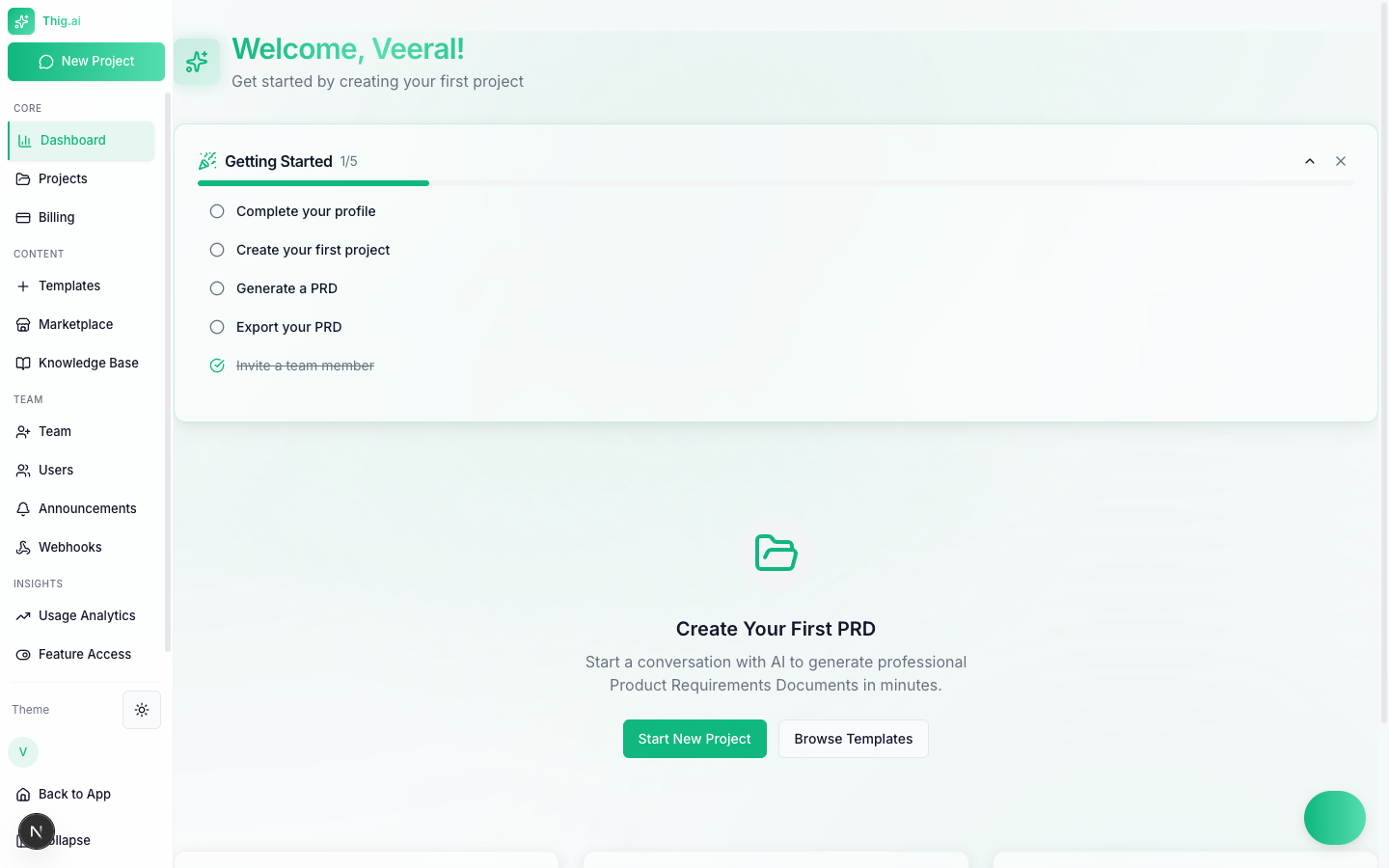 The left sidebar provides quick access to all sections. It includes:
* **Core** — Dashboard, Projects, Billing
* **Content** — Templates, Marketplace, Knowledge Base
* **Team** — Team Members, Announcements, Webhooks (admin only)
* **Insights** — Usage Analytics, Feature Access
The left sidebar provides quick access to all sections. It includes:
* **Core** — Dashboard, Projects, Billing
* **Content** — Templates, Marketplace, Knowledge Base
* **Team** — Team Members, Announcements, Webhooks (admin only)
* **Insights** — Usage Analytics, Feature Access
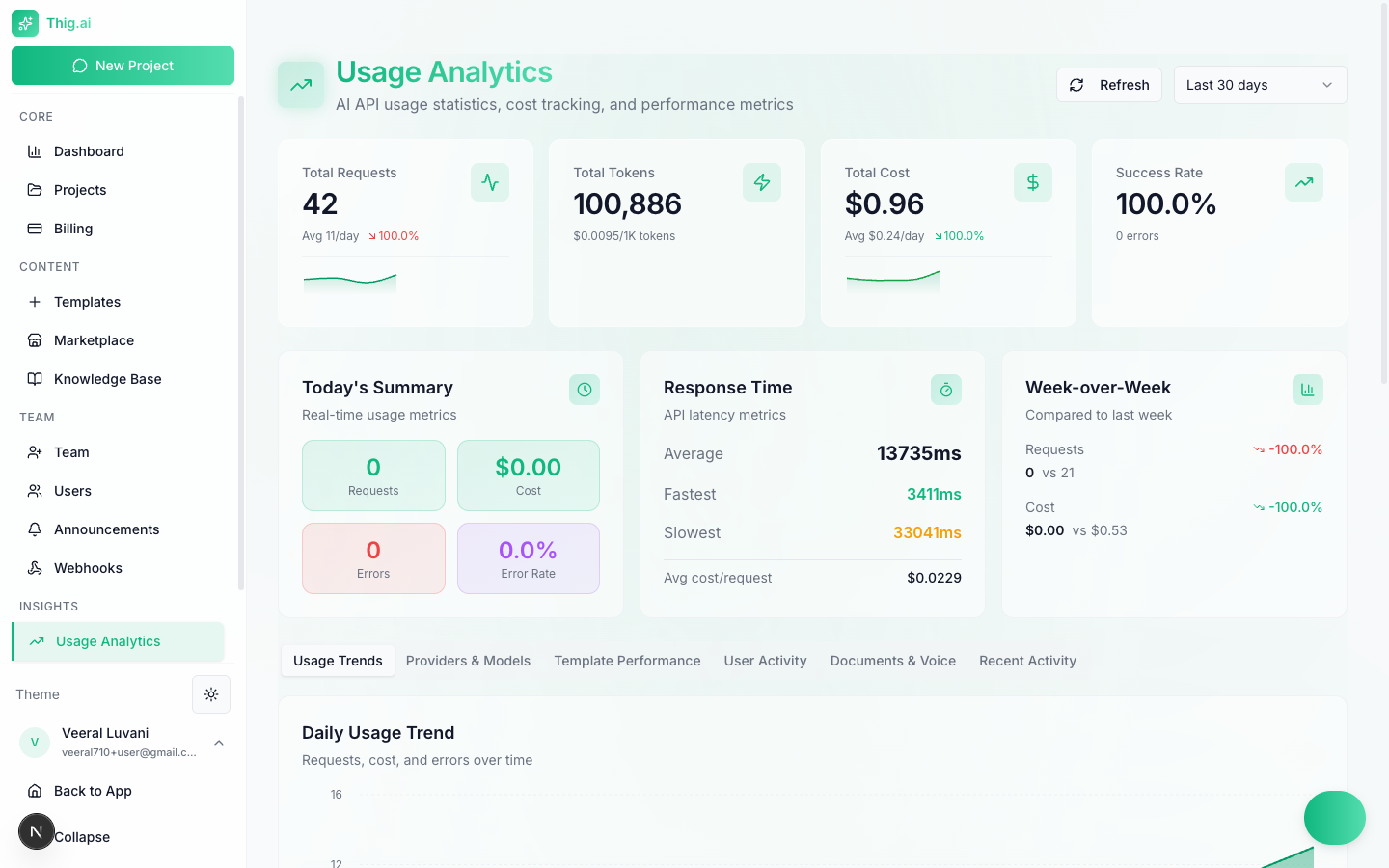 * **Settings** — AI Settings, API Keys, Branding, Integrations, and more
Use **Cmd+K** (Mac) or **Ctrl+K** (Windows) to open the Command Palette for quick navigation to any page.
## User Roles
thig.ai uses a three-tier role system:
### Organization Roles
| Role | Permissions |
| ---------- | ---------------------------------------------------------------- |
| **Owner** | Full access — billing, settings, member management, delete org |
| **Admin** | Manage members, templates, settings (no billing or org deletion) |
| **Member** | Create and manage own projects |
| **Viewer** | Read-only access to shared projects |
### What Each Role Can Do
* **Create projects**: Owner, Admin, Member
* **Manage templates**: Owner, Admin
* **Invite team members**: Owner, Admin
* **View analytics**: All roles
* **Manage billing**: Owner only
* **Configure settings**: Owner, Admin
## AI Providers
thig.ai supports three AI providers:
GPT-4 and GPT-4o models
Claude models
Gemini Pro models
You can:
* Use **platform-provided keys** (included with your plan)
* **Bring your own keys** (BYOK) for any provider
* Set a **default provider** per organization
## Dark Mode
Toggle between light and dark themes using the theme button in the sidebar or via the Command Palette.
## Next Steps
Start an AI conversation to build a PRD
Invite members and configure roles
* **Settings** — AI Settings, API Keys, Branding, Integrations, and more
Use **Cmd+K** (Mac) or **Ctrl+K** (Windows) to open the Command Palette for quick navigation to any page.
## User Roles
thig.ai uses a three-tier role system:
### Organization Roles
| Role | Permissions |
| ---------- | ---------------------------------------------------------------- |
| **Owner** | Full access — billing, settings, member management, delete org |
| **Admin** | Manage members, templates, settings (no billing or org deletion) |
| **Member** | Create and manage own projects |
| **Viewer** | Read-only access to shared projects |
### What Each Role Can Do
* **Create projects**: Owner, Admin, Member
* **Manage templates**: Owner, Admin
* **Invite team members**: Owner, Admin
* **View analytics**: All roles
* **Manage billing**: Owner only
* **Configure settings**: Owner, Admin
## AI Providers
thig.ai supports three AI providers:
GPT-4 and GPT-4o models
Claude models
Gemini Pro models
You can:
* Use **platform-provided keys** (included with your plan)
* **Bring your own keys** (BYOK) for any provider
* Set a **default provider** per organization
## Dark Mode
Toggle between light and dark themes using the theme button in the sidebar or via the Command Palette.
## Next Steps
Start an AI conversation to build a PRD
Invite members and configure roles