> ## Documentation Index
> Fetch the complete documentation index at: https://docs.thig.ai/llms.txt
> Use this file to discover all available pages before exploring further.
# Exports
> Export your PRDs to PDF, DOCX, HTML, Notion, Google Docs, and more
# Exports
Export your PRD documents in multiple formats for sharing with stakeholders, archiving, or integration with other tools.
## Export Formats
### PDF
Styled document with headers, tables, code blocks, lists, and your organization's logo. Generated via jsPDF with professional formatting.
### HTML
Self-contained HTML file with embedded CSS. Opens in any browser — great for web-based sharing.
### DOCX
Microsoft Word format. Compatible with Word, Google Docs, LibreOffice, and other word processors.
### Notion
Creates a new Notion page in your connected workspace. Requires [Notion integration](/user-guide/settings#integrations) to be set up first.
### Google Docs
Creates a new Google Doc in your connected Google Drive. Uses your Google OAuth credentials from sign-in.
### Confluence
Creates a Confluence page in your connected workspace. Requires Confluence integration to be set up.
### Format Comparison
| Feature | PDF | HTML | DOCX | Notion | Google Docs |
| ----------------------- | --- | ---- | ---- | ------ | ----------- |
| Styled headers | Yes | Yes | Yes | Yes | Yes |
| Tables | Yes | Yes | Yes | Yes | Yes |
| Code blocks | Yes | Yes | Yes | Yes | Yes |
| Organization logo | Yes | -- | -- | -- | -- |
| Custom CSS | -- | Yes | -- | -- | -- |
| Real-time collaboration | -- | -- | -- | Yes | Yes |
| Offline access | Yes | Yes | Yes | -- | -- |
| Editable after export | -- | -- | Yes | Yes | Yes |
## How to Export
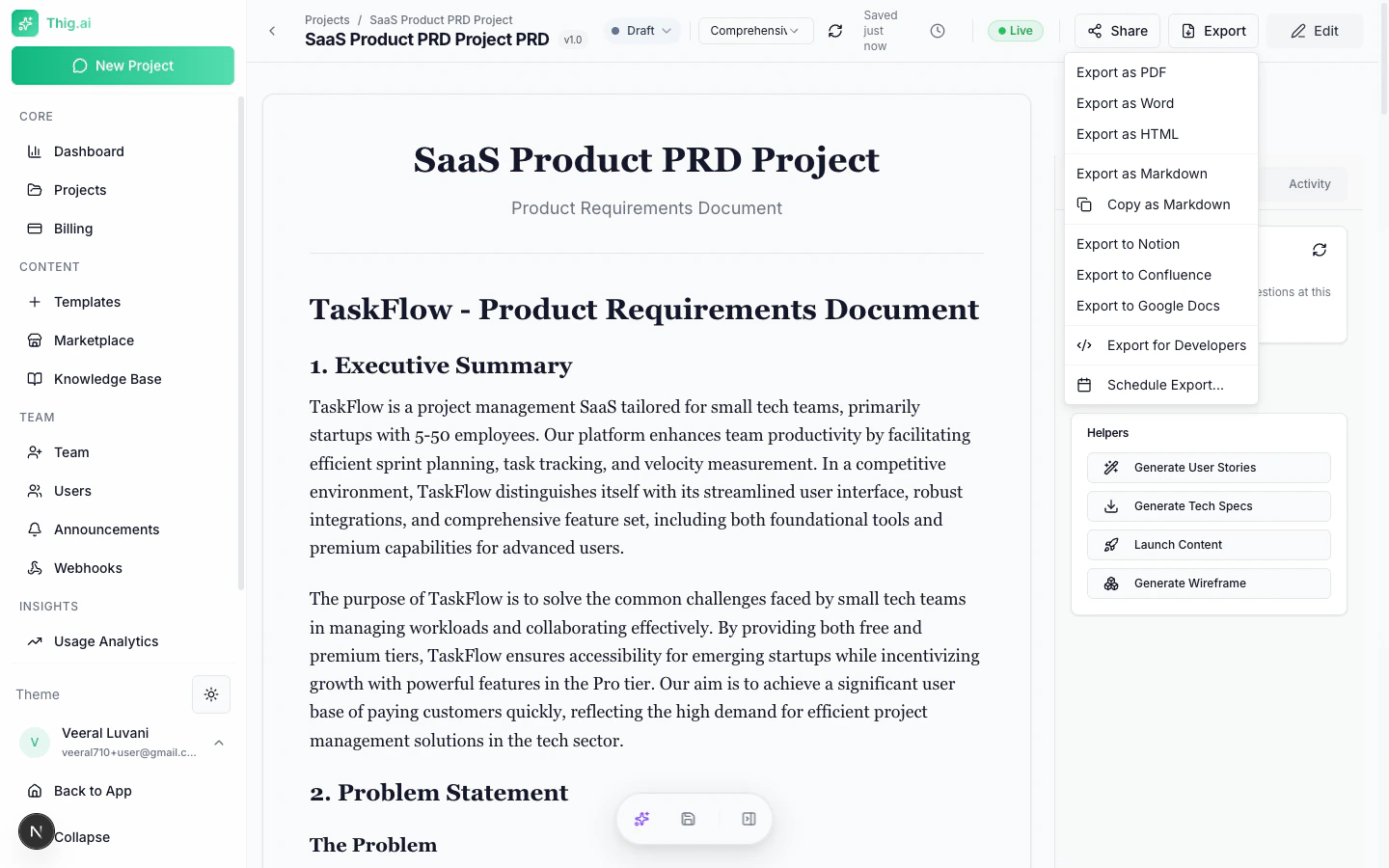 1. Open your PRD in the review page (`/review/[projectId]`)
2. Click the **Export** button in the toolbar
3. Select your desired format
4. File downloads immediately (PDF, HTML, DOCX) or opens in the target app (Notion, Google Docs)
## Bulk Export
Export multiple PRDs at once:
1. Go to **Projects** (`/admin/projects`)
2. Select multiple projects using the checkboxes
3. Click **Bulk Export** from the actions menu
4. Choose format: PDF, HTML, Markdown, or All
5. Downloads as a ZIP file (max 20 projects per export)
## Scheduled Exports
Set up automatic recurring exports at **Settings > Scheduled Exports**.
### Schedule Types
| Type | When It Runs |
| -------------------- | ---------------------------------------- |
| **Weekly Digest** | Every Monday at 9am |
| **On Status Change** | When a project reaches a specific status |
| **Custom Cron** | Any cron expression (e.g., `0 9 * * 1`) |
| **One-Time** | At a specific date and time |
### Delivery Methods
* **Email** — Send to a list of recipients with optional custom subject and message
* **Webhook** — POST to a URL endpoint
### Configuration Options
* Export format (PDF, HTML, DOCX, Markdown)
* Include changelog toggle
* Timezone-aware scheduling
* Custom email subject and message body
### Managing Schedules
From the Scheduled Exports page:
* View all schedules with last run and next run times
* Toggle active/inactive
* Manually trigger with "Run Now"
* View delivery log showing history of attempts
* Delete schedules
Scheduled exports are available on Pro plans and above.
1. Open your PRD in the review page (`/review/[projectId]`)
2. Click the **Export** button in the toolbar
3. Select your desired format
4. File downloads immediately (PDF, HTML, DOCX) or opens in the target app (Notion, Google Docs)
## Bulk Export
Export multiple PRDs at once:
1. Go to **Projects** (`/admin/projects`)
2. Select multiple projects using the checkboxes
3. Click **Bulk Export** from the actions menu
4. Choose format: PDF, HTML, Markdown, or All
5. Downloads as a ZIP file (max 20 projects per export)
## Scheduled Exports
Set up automatic recurring exports at **Settings > Scheduled Exports**.
### Schedule Types
| Type | When It Runs |
| -------------------- | ---------------------------------------- |
| **Weekly Digest** | Every Monday at 9am |
| **On Status Change** | When a project reaches a specific status |
| **Custom Cron** | Any cron expression (e.g., `0 9 * * 1`) |
| **One-Time** | At a specific date and time |
### Delivery Methods
* **Email** — Send to a list of recipients with optional custom subject and message
* **Webhook** — POST to a URL endpoint
### Configuration Options
* Export format (PDF, HTML, DOCX, Markdown)
* Include changelog toggle
* Timezone-aware scheduling
* Custom email subject and message body
### Managing Schedules
From the Scheduled Exports page:
* View all schedules with last run and next run times
* Toggle active/inactive
* Manually trigger with "Run Now"
* View delivery log showing history of attempts
* Delete schedules
Scheduled exports are available on Pro plans and above.