> ## Documentation Index
> Fetch the complete documentation index at: https://docs.thig.ai/llms.txt
> Use this file to discover all available pages before exploring further.
# Collaboration
> Share projects, leave comments, and collaborate with your team in real time
# Collaboration
thig.ai provides multiple ways to collaborate on PRD documents — from real-time presence to threaded comments and external sharing.
## Sharing Projects
### Share via Link
1. Open a project in the review page
2. Click the **Share** button
3. Copy the shareable link
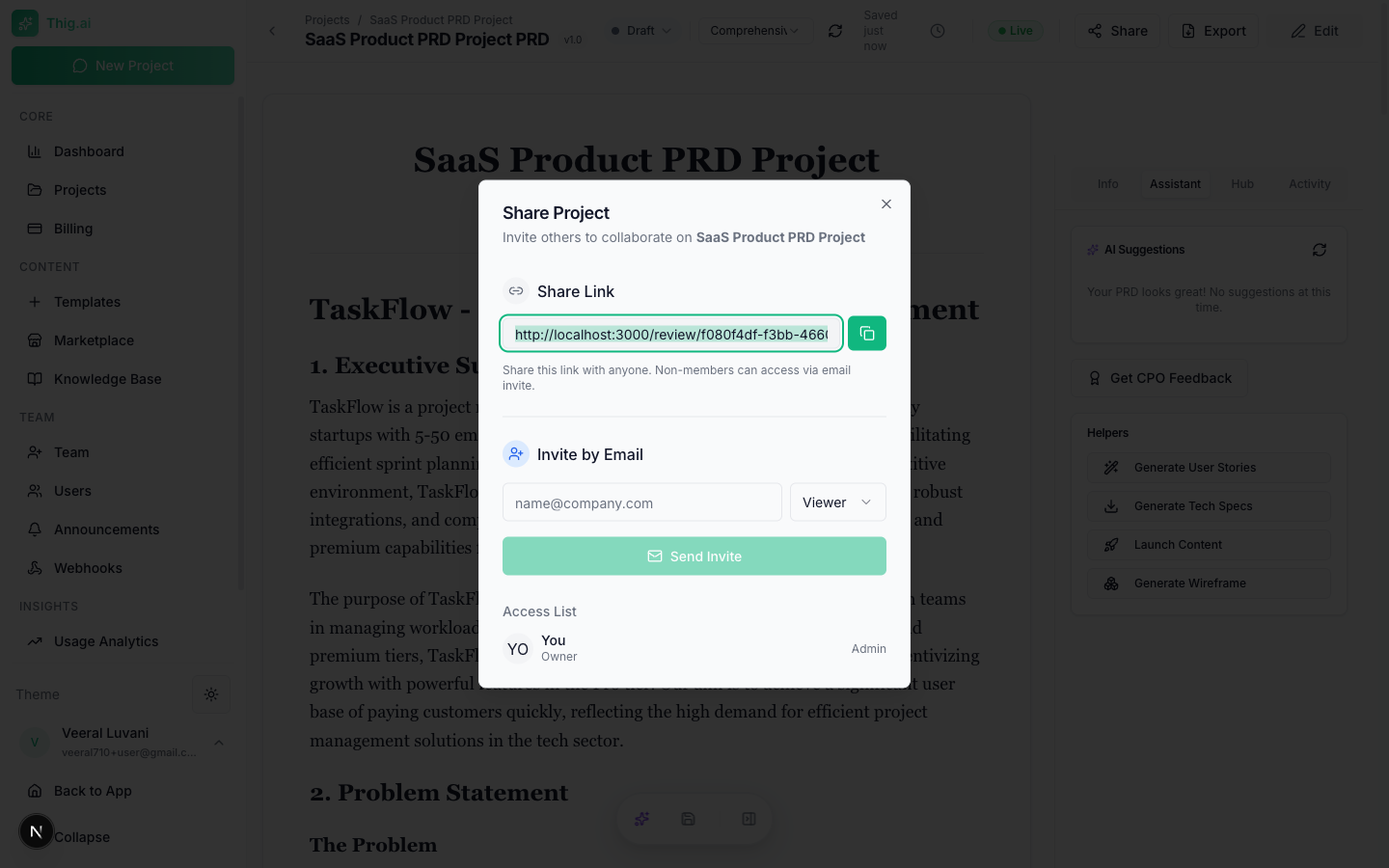 External recipients can view the PRD without logging in.
### Share Settings
Configure per-share:
| Setting | Description |
| ----------------------- | ---------------------------------------------- |
| **Password protection** | Require a password to view |
| **Expiration date** | Link expires after a set date |
| **Max view count** | Limit the number of times the link can be used |
| **Download permission** | Allow or block document downloads |
### Adding Collaborators
Add specific people by email with a role:
* **Viewer** — Can view the PRD
* **Commenter** — Can view and leave comments
You can see each collaborator's access stats (view count, last accessed) and remove access at any time.
## Comments
External recipients can view the PRD without logging in.
### Share Settings
Configure per-share:
| Setting | Description |
| ----------------------- | ---------------------------------------------- |
| **Password protection** | Require a password to view |
| **Expiration date** | Link expires after a set date |
| **Max view count** | Limit the number of times the link can be used |
| **Download permission** | Allow or block document downloads |
### Adding Collaborators
Add specific people by email with a role:
* **Viewer** — Can view the PRD
* **Commenter** — Can view and leave comments
You can see each collaborator's access stats (view count, last accessed) and remove access at any time.
## Comments
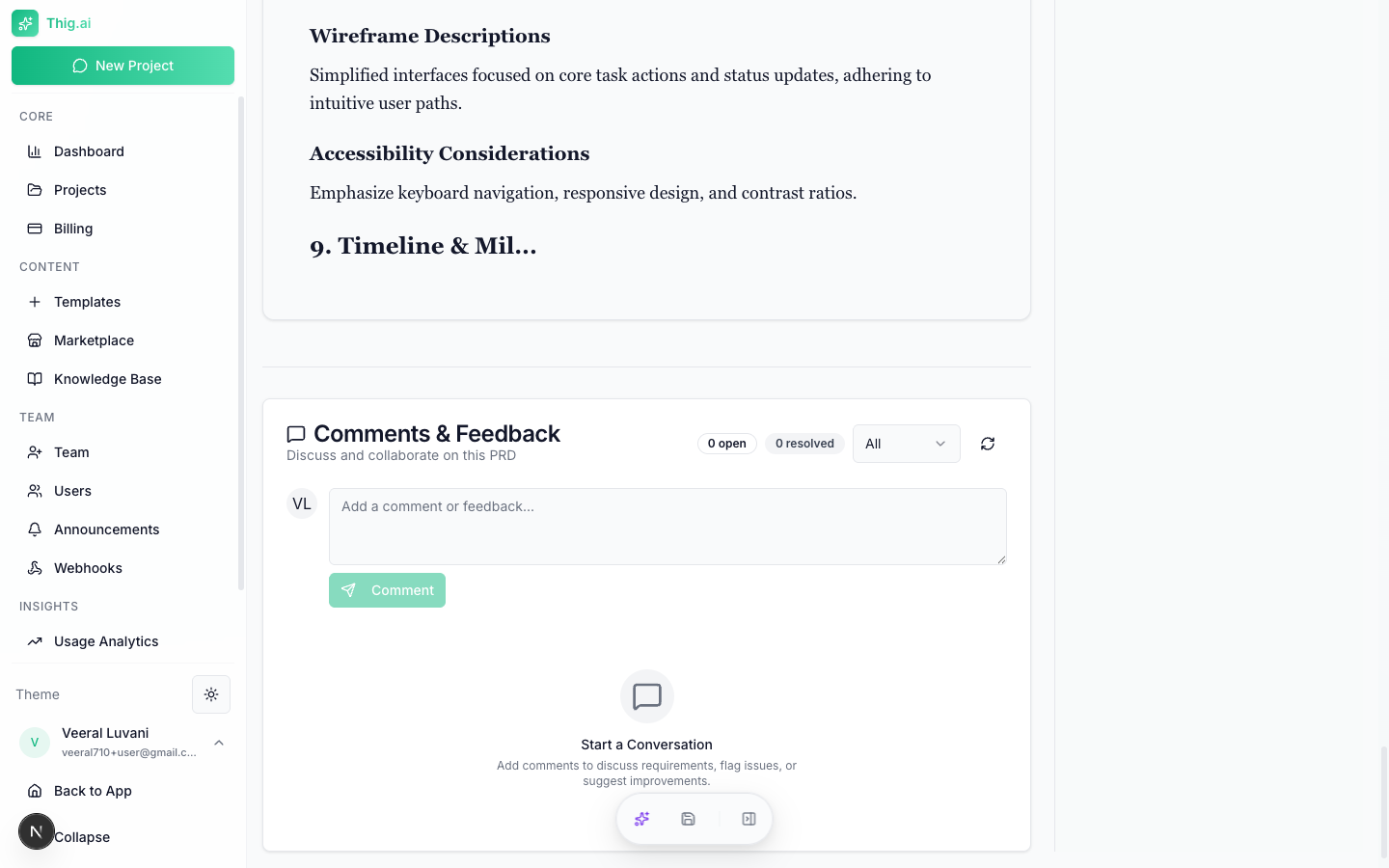 ### Adding Comments
1. Open the **Comments** tab in the right sidebar
2. Type your comment in the input area
3. Click **Send**
### Threaded Replies
Reply to any comment to create a threaded discussion. Threads are collapsible for easy reading.
### Comment Status
Comments can be:
* **Open** — Active discussion
* **Resolved** — Issue addressed
* **Won't Fix** — Acknowledged but not changing
### Filtering
Filter comments by:
* **All** — Show everything
* **Open** — Only unresolved comments
* **Resolved** — Only resolved comments
### Section Anchoring
Comments can be anchored to specific sections or selected text in the PRD, making it easy to reference what's being discussed.
## Real-time Presence
When multiple people have the same document open:
* **Presence avatars** — See who's currently viewing in the top bar
* **Live cursors** — See where others are in the document
* **Save notifications** — Get a toast when someone else saves changes, with a "Reload" button to see updates
## Team Invitations
Invite new members to your organization:
1. Go to **Team** (`/admin/team`)
2. Click **Invite Member**
3. Enter their email and select a role (Admin, Member, or Viewer)
4. They receive an email with a link to join
### Invitation Flow
1. Invitee receives email with a link to `/invite/{token}`
2. They see who invited them, the organization name, and their assigned role
3. If not logged in, they're prompted to sign in or create an account
4. They click "Accept Invitation" to join the organization
5. Redirected to the dashboard
### Managing Invitations
From the Team page (Invitations tab):
* View pending, accepted, and expired invitations
* Resend invitation emails
* Revoke pending invitations
### Adding Comments
1. Open the **Comments** tab in the right sidebar
2. Type your comment in the input area
3. Click **Send**
### Threaded Replies
Reply to any comment to create a threaded discussion. Threads are collapsible for easy reading.
### Comment Status
Comments can be:
* **Open** — Active discussion
* **Resolved** — Issue addressed
* **Won't Fix** — Acknowledged but not changing
### Filtering
Filter comments by:
* **All** — Show everything
* **Open** — Only unresolved comments
* **Resolved** — Only resolved comments
### Section Anchoring
Comments can be anchored to specific sections or selected text in the PRD, making it easy to reference what's being discussed.
## Real-time Presence
When multiple people have the same document open:
* **Presence avatars** — See who's currently viewing in the top bar
* **Live cursors** — See where others are in the document
* **Save notifications** — Get a toast when someone else saves changes, with a "Reload" button to see updates
## Team Invitations
Invite new members to your organization:
1. Go to **Team** (`/admin/team`)
2. Click **Invite Member**
3. Enter their email and select a role (Admin, Member, or Viewer)
4. They receive an email with a link to join
### Invitation Flow
1. Invitee receives email with a link to `/invite/{token}`
2. They see who invited them, the organization name, and their assigned role
3. If not logged in, they're prompted to sign in or create an account
4. They click "Accept Invitation" to join the organization
5. Redirected to the dashboard
### Managing Invitations
From the Team page (Invitations tab):
* View pending, accepted, and expired invitations
* Resend invitation emails
* Revoke pending invitations