> ## Documentation Index
> Fetch the complete documentation index at: https://docs.thig.ai/llms.txt
> Use this file to discover all available pages before exploring further.
# Billing
> Manage your subscription, plans, and usage limits
# Billing
Manage your organization's subscription plan and monitor usage at **Billing** (`/admin/billing`).
## Plans
| Feature | Free | Pro | Business | Enterprise |
| --------------------- | ------- | ---------------- | ---------------- | ---------- |
| Team members | 1 | Up to plan limit | Up to plan limit | Unlimited |
| Projects | Limited | More | More | Unlimited |
| AI tokens/month | Basic | Higher | Higher | Unlimited |
| Templates | Limited | More | More | Unlimited |
| Document uploads | Limited | More | More | Unlimited |
| Transcription minutes | Limited | More | More | Unlimited |
| Custom domain | No | No | Yes | Yes |
| Scheduled exports | No | Yes | Yes | Yes |
View exact limits for each plan on the [Pricing page](https://app.thig.ai/pricing).
## Usage Dashboard
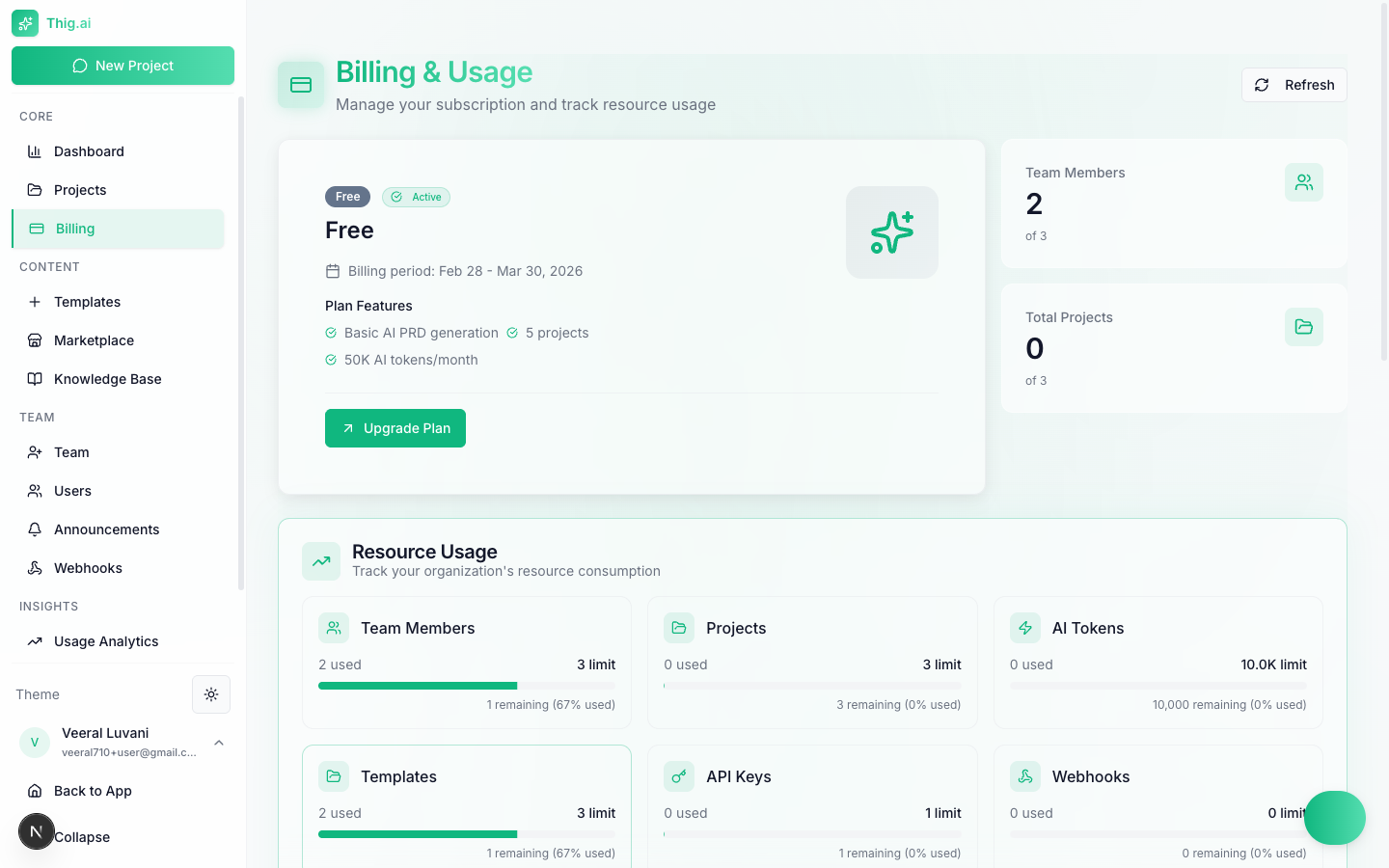 The billing page shows usage across all resources:
* **Team members** — Current vs. limit
* **Projects** — Current vs. limit
* **AI tokens** — Monthly usage vs. limit
* **Templates** — Current vs. limit
* **API keys** — Current vs. limit
* **Webhooks** — Current vs. limit
* **Document uploads** — Monthly count vs. limit
* **Transcription minutes** — Monthly usage vs. limit
* **Custom domain** — Allowed or not
Each resource shows a progress bar with visual warnings:
* **Green** — Under 70% usage
* **Yellow** — 70–90% usage
* **Red** — Over 90% usage
## Upgrading
1. Click **Upgrade Plan** on the billing page or visit `/pricing`
2. Select Pro or Business
3. Choose monthly or annual billing
4. Complete checkout via Dodo Payments
5. Plan activates immediately
## Managing Billing
Click **Manage Billing** to open the Dodo Payments portal where you can:
* Update your payment method
* Download invoices
* View transaction history
* Cancel your subscription
## Failed Payments & Grace Period
If a payment fails, your subscription enters a **past due** state with a 7-day grace period:
1. **Day 0** — Payment fails. You receive a notification. All features remain active.
2. **Days 1–7** — Grace period. You can update your payment method to resolve the issue.
3. **Day 7** — If unresolved, your organization is automatically downgraded to the Free plan. The owner receives a cancellation email.
Downgrading to Free may cause data loss if you exceed Free tier limits (e.g., team members over the limit will lose access, but data is preserved).
## Monthly Token Reset
AI token usage resets to zero on the first of each month. This happens automatically — no action needed.
## BYOK as an Alternative
If you hit AI token limits but don't want to upgrade, you can [bring your own API keys](/user-guide/settings#my-ai-keys--byok) to use your own AI accounts. BYOK usage doesn't count against your plan's token limit.
The billing page shows usage across all resources:
* **Team members** — Current vs. limit
* **Projects** — Current vs. limit
* **AI tokens** — Monthly usage vs. limit
* **Templates** — Current vs. limit
* **API keys** — Current vs. limit
* **Webhooks** — Current vs. limit
* **Document uploads** — Monthly count vs. limit
* **Transcription minutes** — Monthly usage vs. limit
* **Custom domain** — Allowed or not
Each resource shows a progress bar with visual warnings:
* **Green** — Under 70% usage
* **Yellow** — 70–90% usage
* **Red** — Over 90% usage
## Upgrading
1. Click **Upgrade Plan** on the billing page or visit `/pricing`
2. Select Pro or Business
3. Choose monthly or annual billing
4. Complete checkout via Dodo Payments
5. Plan activates immediately
## Managing Billing
Click **Manage Billing** to open the Dodo Payments portal where you can:
* Update your payment method
* Download invoices
* View transaction history
* Cancel your subscription
## Failed Payments & Grace Period
If a payment fails, your subscription enters a **past due** state with a 7-day grace period:
1. **Day 0** — Payment fails. You receive a notification. All features remain active.
2. **Days 1–7** — Grace period. You can update your payment method to resolve the issue.
3. **Day 7** — If unresolved, your organization is automatically downgraded to the Free plan. The owner receives a cancellation email.
Downgrading to Free may cause data loss if you exceed Free tier limits (e.g., team members over the limit will lose access, but data is preserved).
## Monthly Token Reset
AI token usage resets to zero on the first of each month. This happens automatically — no action needed.
## BYOK as an Alternative
If you hit AI token limits but don't want to upgrade, you can [bring your own API keys](/user-guide/settings#my-ai-keys--byok) to use your own AI accounts. BYOK usage doesn't count against your plan's token limit.